GPS tracking
How tracking works
Pebbls records your position with the phone's GPS while the app is in the background, roughly every 15 metres you move, and sends them to Pebbls a few times an hour. Your route appears on the app map straight away and on the website a little later.
Starting tracking
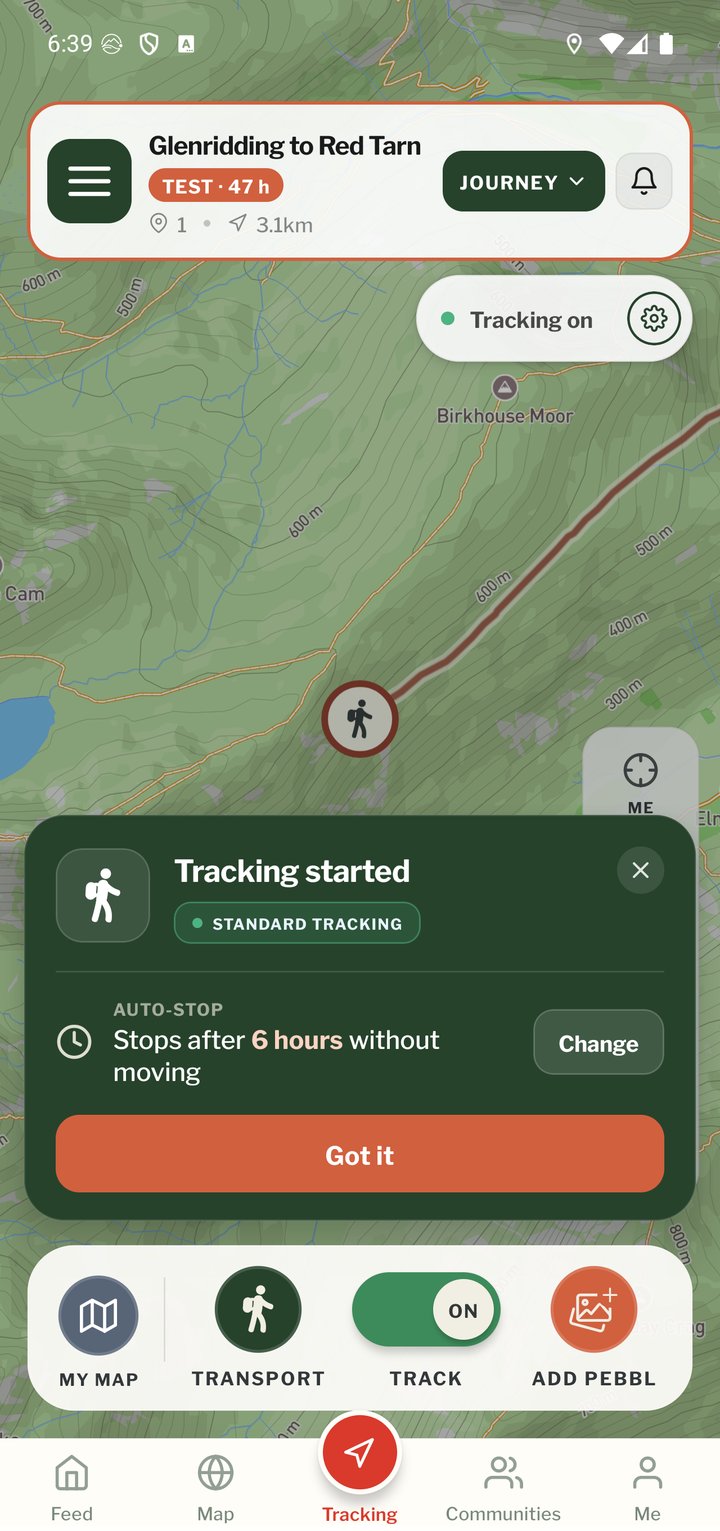
Tap TRACK at the bottom of the Record screen or Turn on in the tracking status bar. A green card confirms tracking has started, shows whether you are in Live or Standard mode and how long until auto-stop. On Android a permanent notification shows that Pebbls is tracking.
Back on an old journey?
If nothing has been added to the journey you're on for more than 30 days, TRACK first asks Start a new journey? and says when you last added to it. That stops a walk at home ending up in last year's trip. Start a new journey gives this trip a journey of its own. Keep adding to this journey starts tracking into the old one, and you won't be asked again for that chapter.
Stopping tracking
Tap TRACK again. The card shows how long you tracked for and the status bar changes to "Tracking off". Stop tracking before you start a new chapter or journey.
Automatic stop
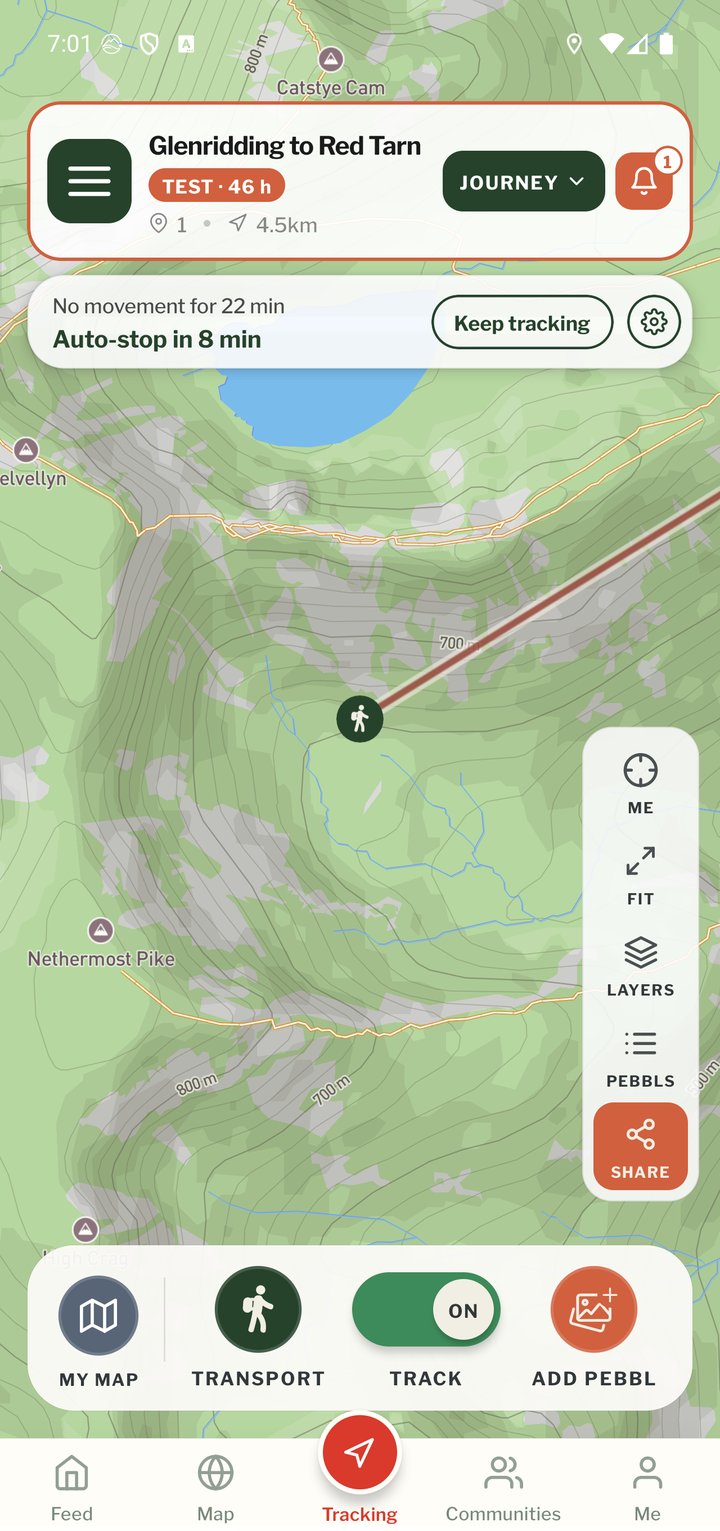
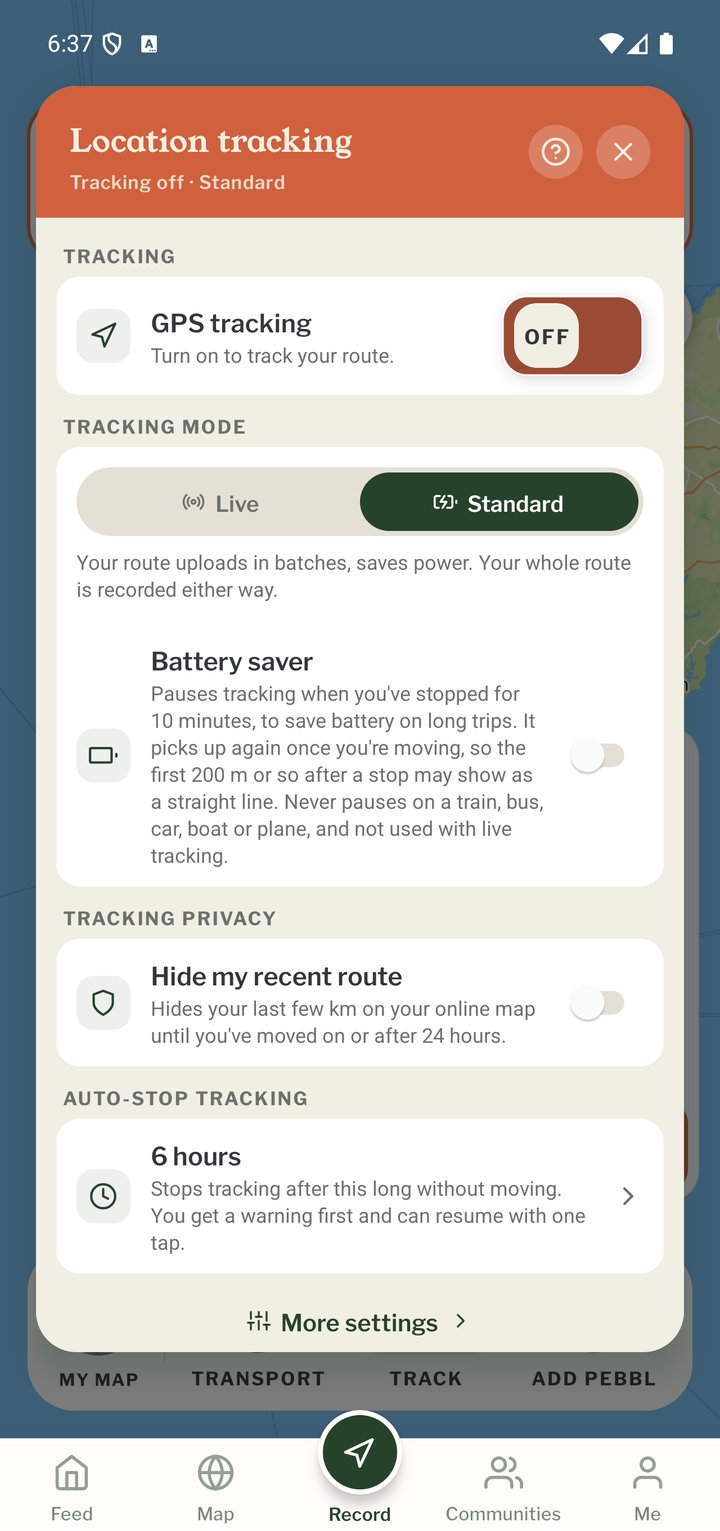
If you have not moved for a set time, Pebbls stops tracking for you so it does not run all night in a hotel or keep recording after you forgot to stop. New installs start at 12 hours, so an afternoon on the beach doesn't stop it. You get a notification before it stops with a Keep tracking button, and another when it has stopped with Resume tracking. Change the time in Location Tracking Settings or Settings › Tracking: 30 minutes, 1, 2, 6, 12, 24 or 48 hours, or Disabled.
Location tracking settings
Tap the gear on the tracking status bar, or long-press TRACK, to open the Location Tracking menu. It has the GPS on/off switch, a Live | Standard mode control, the "Hide my recent route" switch (Tracking Privacy) and the auto-stop time. The Battery saver switch pauses tracking when you've stopped for 10 minutes, and starts again once you're moving. More Settings at the bottom takes you to the main Settings screen.
Warnings while tracking
- Poor GPS signal: a banner on the map saying journey tracking may not work until the signal improves. Tap it for five quick tips. See "GPS Signal Tips"
- Location not set to Always, switched off or approximate only: a warning with Open Settings. See "App Permissions"
- Low battery: a warning at 15%, and another when Low Power Mode is on, because phones then slow down or pause apps running in the background
- Date and time: your phone's date and time must be set to update automatically (phone Settings › Date & Time)
Battery
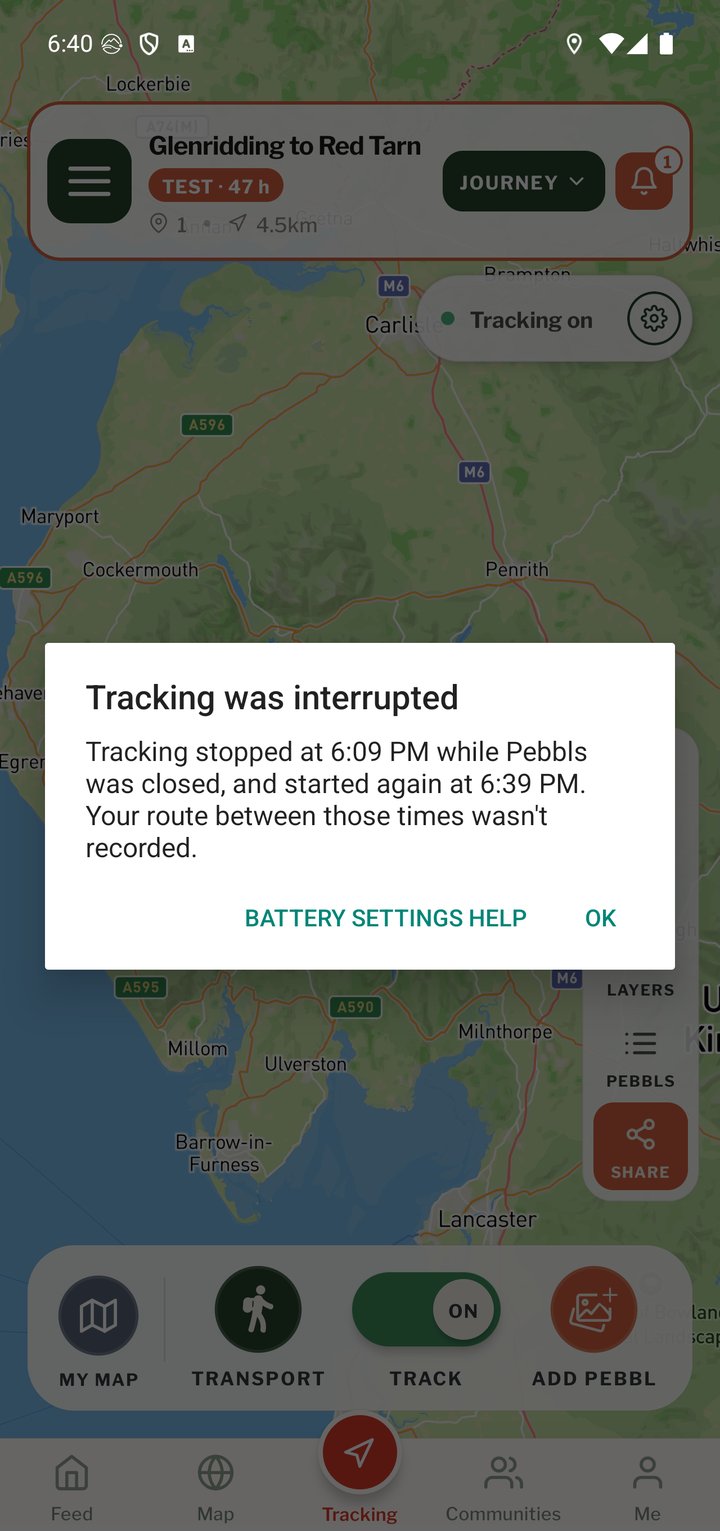
If the phone closes Pebbls while you're tracking, say with Force stop or a battery saver that shuts apps down, Android doesn't start tracking again until you open the app. When you do, and you're more than about half a kilometre from where it stopped, Pebbls tells you once with Tracking was interrupted. It gives the time tracking stopped and the time it started again, and your route between those times wasn't tracked. You may see it on iPhone too. Battery settings help on that message brings you to this page, and the tips below help Pebbls keep running.
- Standard tracking uses less power than Live
- Battery saver, in the tracking menu on the map or in Settings, pauses tracking when you've stopped for 10 minutes and picks up again once you're moving. The first 200 m or so after a stop may show as a straight line. The map shows "Paused to save battery" while it's resting; tap Resume as you set off and nothing is missed. It isn't used with Live tracking
- Keep the phone charged on multi-day trips; carry a power bank
- Do not force-close the app; leave it in the background
- Some Android brands (Xiaomi, Huawei, OnePlus) stop background apps aggressively. Turn off battery optimisation for Pebbls in the phone's settings; dontkillmyapp.com explains how for each brand
Mobile app
- The Record screen
- The bar at the bottom
- Journeys with no pebbls
- Live and standard tracking
- Tracking on the lock screen
- Transport modes
- The JOURNEY menu
- Tools on the Record map
- The country you're in
- Phrasebook
- Daylight
- Signpost
- Packing list in the app
- Safety plan in the app
- Editing a chapter
- Editing journey details
- App permissions
- App settings
- Offline maps and places
- Syncing and uploads
- Mobile data usage
- GPS signal tips
- Notifications
- Troubleshooting