Tracking on the lock screen
What it shows
While you're tracking, the lock screen shows the chapter you're on now, with the journey and chapter name at the top. It updates about once a minute, or straight away when something changes. It's free.
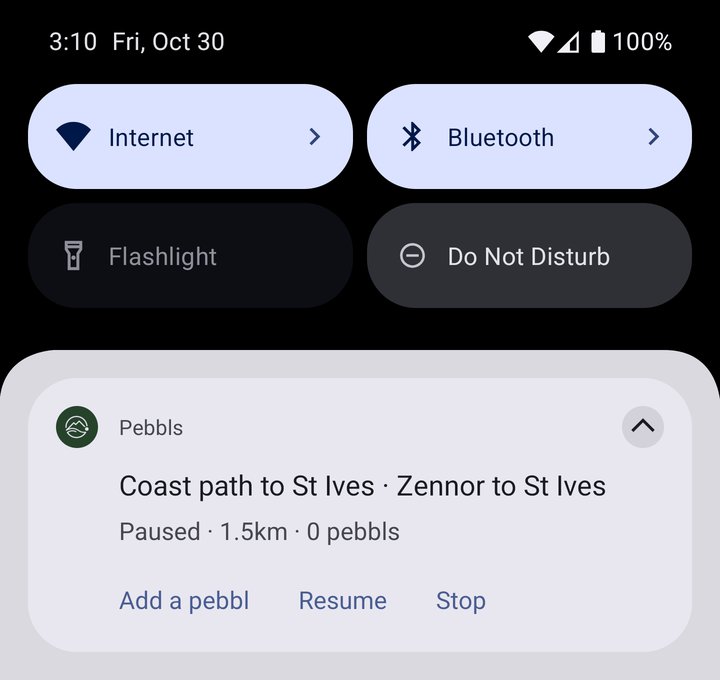
- Tracking, Paused, or No GPS signal when the phone hasn't had a position for a few minutes while you're moving. Paused shows when you pause, and also when Battery saver has paused tracking because you've stopped. If a lot of points are waiting to upload, it says how many instead
- The chapter's distance, the same number as at the top of the Record screen
- How many pebbls the chapter has
- On a shared journey, how far away someone is while you're more than a kilometre apart, such as Sam 1.4 km away
Pause and Add a pebbl
Pause turns tracking off but keeps you in the same chapter. Add a pebbl opens the app ready to add one. While you're paused the card says Paused, with Resume and Stop next to Add a pebbl. Resume carries on in the same chapter. Stop turns tracking off and the card goes, just like tapping TRACK in the app. On Android, Pause works straight from the notification without opening Pebbls, and Resume and Stop open the app. On iPhone every button opens the app. A pause ends by itself after 12 hours. Tracking is then off, and the next time you open Pebbls it says “Your pause ran out after 12 hours, so tracking is off. Turn it on when you set off again.”
On iPhone
The status shows on the lock screen and, on iPhones with a Dynamic Island, at the top of the screen while you use other apps. It needs iOS 16.2 or later. If the phone closes Pebbls in the background, the numbers can stop moving. Opening the app brings them up to date. After a pause runs out, the card may still be on the lock screen, but tracking is off. Opening Pebbls takes it away.
On Android
It's the tracking notification Pebbls already shows while you track, with the chapter's details and the two buttons. On Android 16 phones that support Live Updates, such as recent Pixels, it's pinned at the top of the lock screen and the chapter's distance shows as a small chip in the status bar. On older Android it's a normal notification. If your phone unlocks straight away, for example with face unlock that skips the lock screen, you'll see it in the status bar and when you pull down your notifications.
Turning it off
Go to Settings › Tracking and switch off Tracking on the lock screen. It goes straight away, and tracking carries on as normal. On Android you'll still see a plain tracking notification, because Android shows one whenever an app uses your location in the background.