The Record screen
Your Record screen
Record is the middle button in the bar at the bottom of the app. It opens the map of the chapter you are tracking, with everything you need while travelling on one screen. While tracking is on the button turns red and says Tracking, so you can see it from any tab.
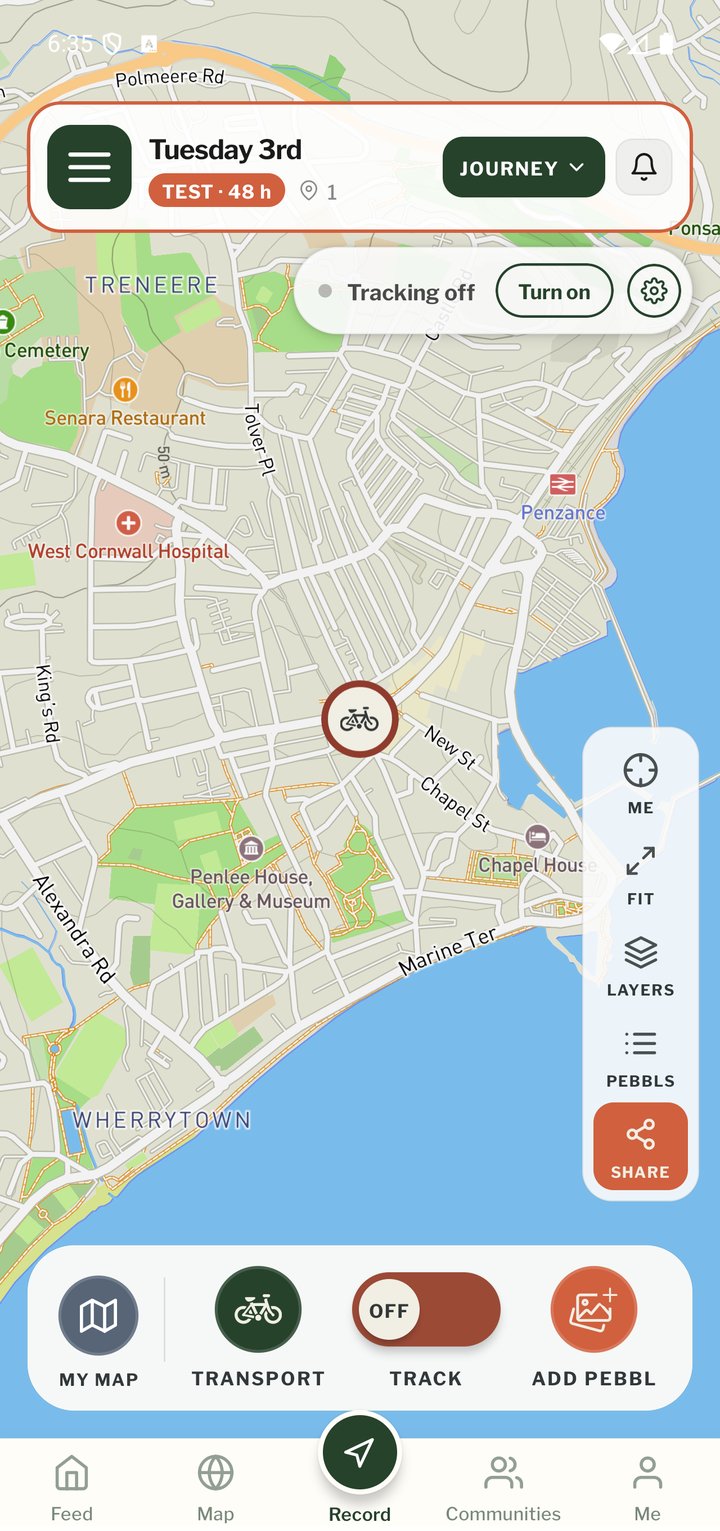
Top bar
- ☰ Menu: your journeys, photos, films, settings and help
- Journey name, with the Pebbl count and distance of the current chapter
- JOURNEY: the journey menu (share, chapters, journey actions)
- Bell: your notifications. It turns orange with a number when there is something new (see "Notifications")
Tracking status
Under the top bar a small status bar shows "Tracking off" with a Turn on button, or "Tracking on". The gear on the status bar opens Location Tracking Settings. While you are stationary it counts down to the automatic stop and offers Keep tracking.
The daylight pill
A small pill under the top bar shows how much daylight is left where you are, such as 3 h 44 min left. It turns amber in the last hour of light. Tap it for sunrise, sunset and the next few days (see "Daylight").
Map buttons
- ME: centre the map on your current position
- FIT: zoom out to show the whole chapter
- LAYERS: switch between the standard map and satellite imagery
- PEBBLS: list the Pebbls in this chapter
- TOOLS (a compass icon): the country you're in, the phrasebook, daylight, the signpost, your packing list, a safety plan, offline maps and places (see "Tools on the Record map")
- SHARE: open the Share panel
- A separate compass appears on the map when it's rotated; tap it to face north again
Controls at the bottom
- MY MAP: your whole journey, with every chapter, opened in the Map tab
- TRANSPORT: change how you are travelling (the icon shows the current mode)
- TRACK: turn GPS recording on or off. Long-press it for Location Tracking Settings
- ADD PEBBL (the photos button): drop a Pebbl at your current location
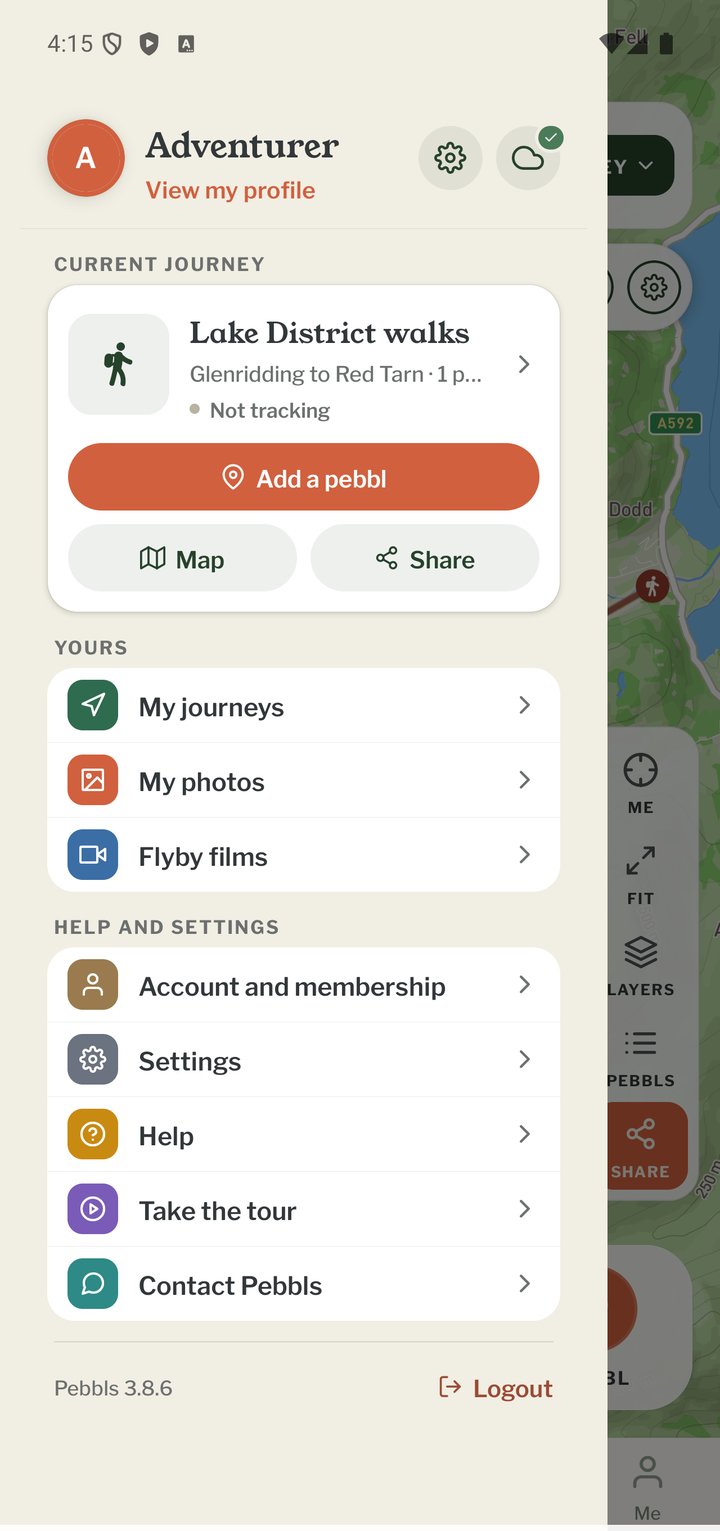
The menu
At the top of the ☰ menu are your name (View my profile opens your profile), the gear for Settings and the cloud for Uploads, which shows a tick when everything is uploaded or the number of items waiting. The Current journey card below shows the journey and chapter you're on and whether tracking is on, with Add a pebbl, Map and Share. Yours has My journeys, My photos and Flyby films. Help and settings has Account and membership, Settings, Help, Take the tour and Contact Pebbls. Logout is at the bottom.
Mobile app
- The bar at the bottom
- GPS tracking
- Journeys with no pebbls
- Live and standard tracking
- Tracking on the lock screen
- Transport modes
- The JOURNEY menu
- Tools on the Record map
- The country you're in
- Phrasebook
- Daylight
- Signpost
- Packing list in the app
- Safety plan in the app
- Editing a chapter
- Editing journey details
- App permissions
- App settings
- Offline maps and places
- Syncing and uploads
- Mobile data usage
- GPS signal tips
- Notifications
- Troubleshooting