The JOURNEY menu
Everything about the current journey
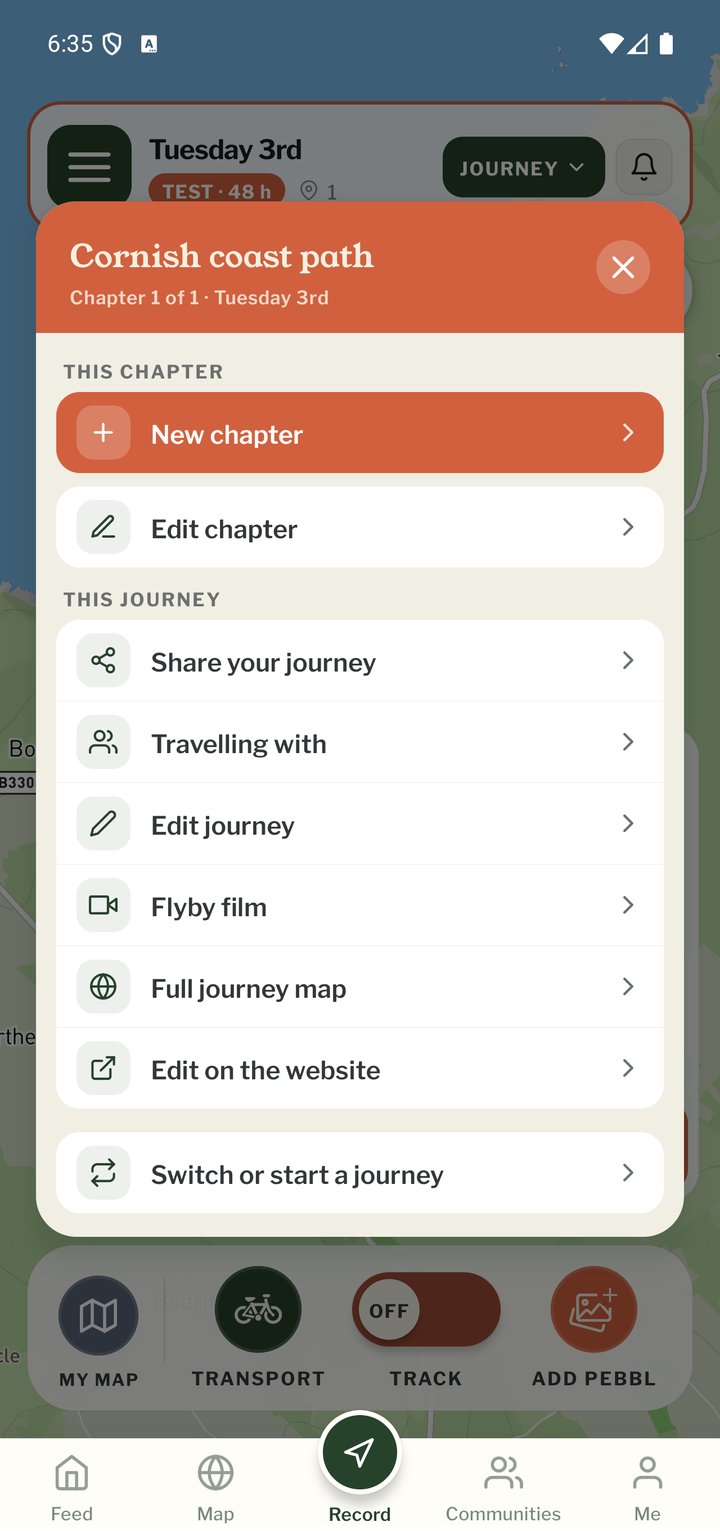
Tap JOURNEY at the top right of the Record screen. The header shows which journey and chapter the actions apply to. This chapter: New Chapter and Edit Chapter. This journey: the rows below.
What's in it
- Share your journey: opens the same sheet as the SHARE button on the map, for sending links, a QR code, embedding the map, the GPX file or a printed map
- Travelling with: invite someone to track into this journey on their own phone, and see who's on it
- Edit Journey: title, description, web address, privacy, GPX and the End Journey button
- Fundraising: your donate link and target, which people following you see on your map. Not shown on test journeys
- Flyby films: watch the flyby films for this journey's chapters
- Full Journey Map: the website map with every chapter
- Edit on the website: opens this journey's editor on the website
- Switch or Start a Journey: begin a new journey or go back to a previous one
On the way
Below the rows, On the way has three tiles: Daylight, Packing list and Places you'll need. They open the same tools as the TOOLS button on the Record map (see "Tools on the Record map").
Ending a journey
Stop tracking, open JOURNEY › Edit Journey and use End Journey at the bottom. The journey stays online and you can Resume This Journey, Edit Journey Details or View Map from the ended-journey screen. Ending is optional; many people simply start their next journey.
Mobile app
- The Record screen
- The bar at the bottom
- GPS tracking
- Journeys with no pebbls
- Live and standard tracking
- Tracking on the lock screen
- Transport modes
- Tools on the Record map
- The country you're in
- Phrasebook
- Daylight
- Signpost
- Packing list in the app
- Safety plan in the app
- Editing a chapter
- Editing journey details
- App permissions
- App settings
- Offline maps and places
- Syncing and uploads
- Mobile data usage
- GPS signal tips
- Notifications
- Troubleshooting