Signpost
What it shows
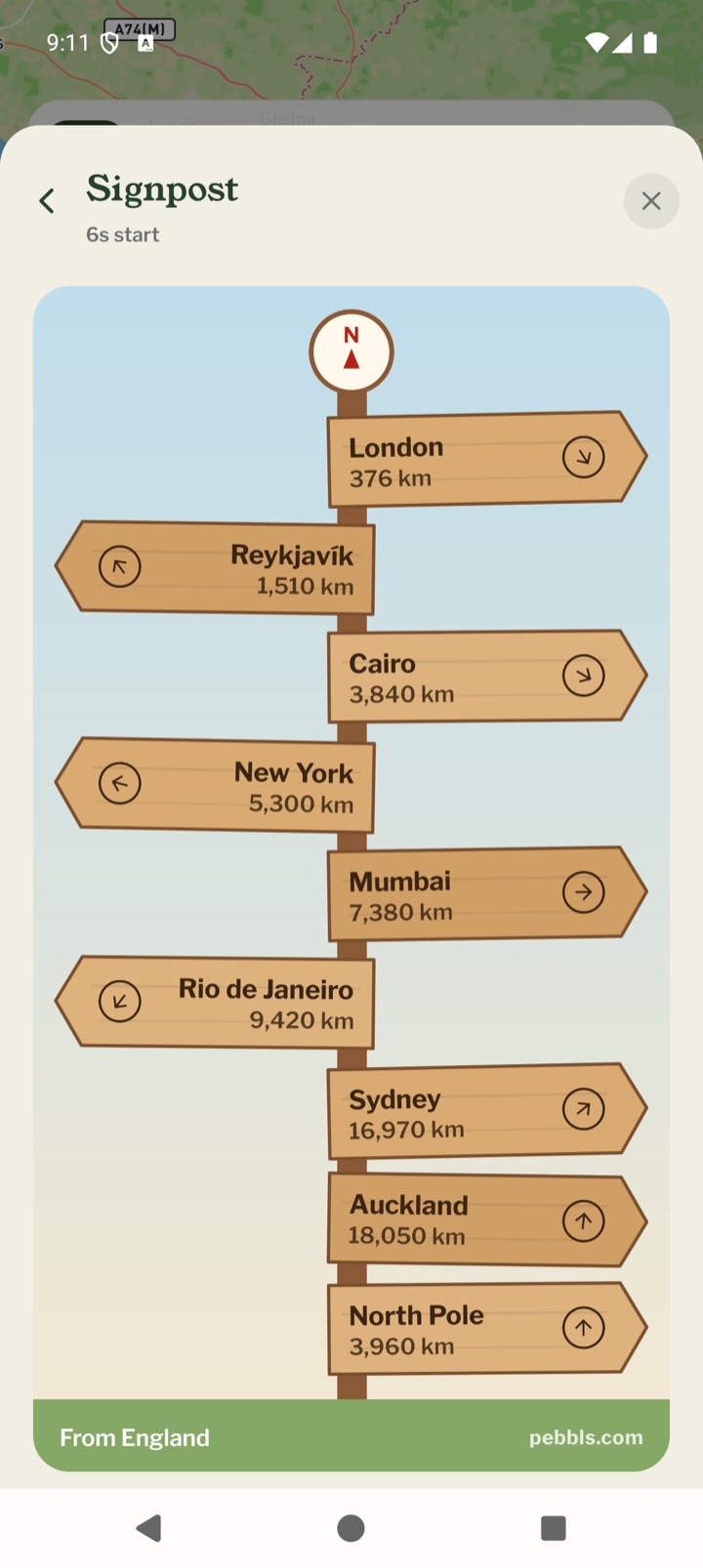
Open TOOLS on the Record map and tap Signpost. It's drawn like the signposts at viewpoints, with a board for each place and how far away it is in a straight line. The arrow on each board points the exact way. Your own places go at the top, then where this chapter started, then well-known cities around the world, then the North Pole. Distances are in kilometres or miles, as in your settings. It's all worked out on the phone, so it works with no signal.
Adding your own places
Tap Add a place and search for a town or a country, or tap Use where I am now if you're at home. Then give the board a short name, like Home or Mum's. You can have up to 10. The ⋯ beside a place has Rename, Move up, Move down and Remove. If your profile says where you live, the signpost may offer to add it as Home. The search only has towns of 20,000 people or more.
Well-known cities
Turn off Show well-known cities to keep only your own places on the post.
Turning with you
If your phone has a compass, the boards turn as you turn, so the arrows keep pointing the right way. Hold the phone flat. Without a compass, north is at the top, as on a map, and the line under the signpost says so.
Sharing it
Share the signpost makes a picture of it, with where you are along the bottom, and opens your phone's share sheet so you can send it or post it.
Mobile app
- The Record screen
- The bar at the bottom
- GPS tracking
- Journeys with no pebbls
- Live and standard tracking
- Tracking on the lock screen
- Transport modes
- The JOURNEY menu
- Tools on the Record map
- The country you're in
- Phrasebook
- Daylight
- Packing list in the app
- Safety plan in the app
- Editing a chapter
- Editing journey details
- App permissions
- App settings
- Offline maps and places
- Syncing and uploads
- Mobile data usage
- GPS signal tips
- Notifications
- Troubleshooting