Flyby films
What are flyby films?
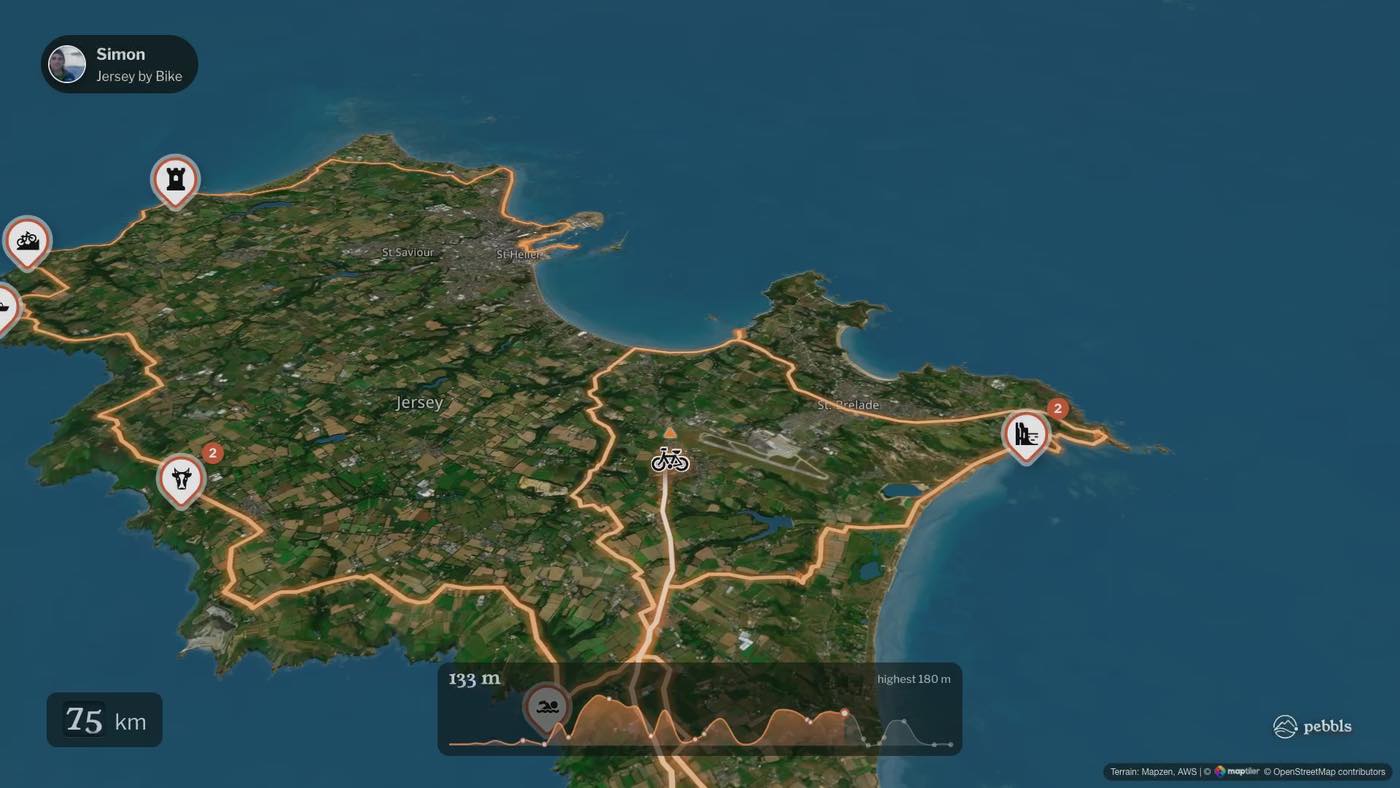
A flyby film flies low over satellite imagery and 3D terrain along your route. The line draws itself as the film goes, with your transport at its tip, each pebbl pops up where you dropped it, and your photos come up together at the places you took them. It ends on a card with the chapter's numbers, and there's music throughout. Films are made automatically and are free for everyone.
Which chapters get one
Every chapter can have its own film. Public, private and password-protected journeys all get them. A chapter gets one when it has:
- more than 5 km of route
- a recorded track of more than 120 GPS points
- at least 2 pebbls and 3 photos that aren't private
- more than a flight: flights are fine as part of a chapter, but a chapter that is only a flight doesn't get a film
- a journey that isn't marked as a test
When it's made
A chapter's film is made about an hour after the last change to it. When you add, move or remove pebbls or photos, or the route changes, the film is made again, about an hour after the last change and at most once a day. Changing only the words doesn't make a new film. The new film replaces the old one, which keeps playing until the new one is ready. You don't need to ask for a chapter's film; the Flyby films screen in the app shows each chapter's film. See "Notifications" for when you're told a film is ready.
A film of the whole journey
A journey can also have one film of the whole trip, up to about two minutes long, with photos from along the way. It needs at least 5 pebbls with photos that aren't private and 20 km of route. Test journeys don't get one.
- Explorers get it free when a journey with 2 or more chapters ends: when you tap End Journey in the app or start a newer journey, or after three weeks with nothing new (six if you're mostly on the water)
- Anyone can ask for a film of the journey so far. On the journey map, tap ⓘ (Journey details) and then Make a film of the journey so far. It costs 1 credit for Explorers and 2 for everyone else, takes about half an hour, and you get the credits back if it fails
- When it's ready you get a message. When a public journey has ended and its film is ready, your followers with the app hear about it too
- Press Watch the whole journey on the journey map to see it. It also comes first among the films at the top of the journal, and shows on your profile and under Whole journeys on the Flyby films page
Formats
New films are made in landscape (widescreen), which suits YouTube, computers, TVs and a phone turned sideways. Some older films also have upright and square versions, and the player lets you switch between them.
How your films look
Explorer members can choose how Pebbls makes the films of their chapters and journeys. On the website, open Account settings and the Flyby films tab. A preview shows how your next film will look, and Watch an example plays a short clip. Tap a choice and it's saved straight away. Films made from then on use it, and the ones you already have stay as they are. Everyone else sees the choices their films are made with, locked.
- When photos show: The route keeps going, or The route waits, which stops at the photos and carries on from there
- Pace: Calm, slower with more time to take in the route, or Normal
- Route colour: Pebbls orange, red, green, blue, purple or white
- Titles and text: As you wrote them, or In English, translated where you wrote in another language
- Music: Pebbls picks a track, No music, or one of the tracks, which you can play before you choose
Where to watch
- App: menu › Flyby films (your own films, with a Following tab for people you follow), JOURNEY › Flyby films, or the notification when your film is ready
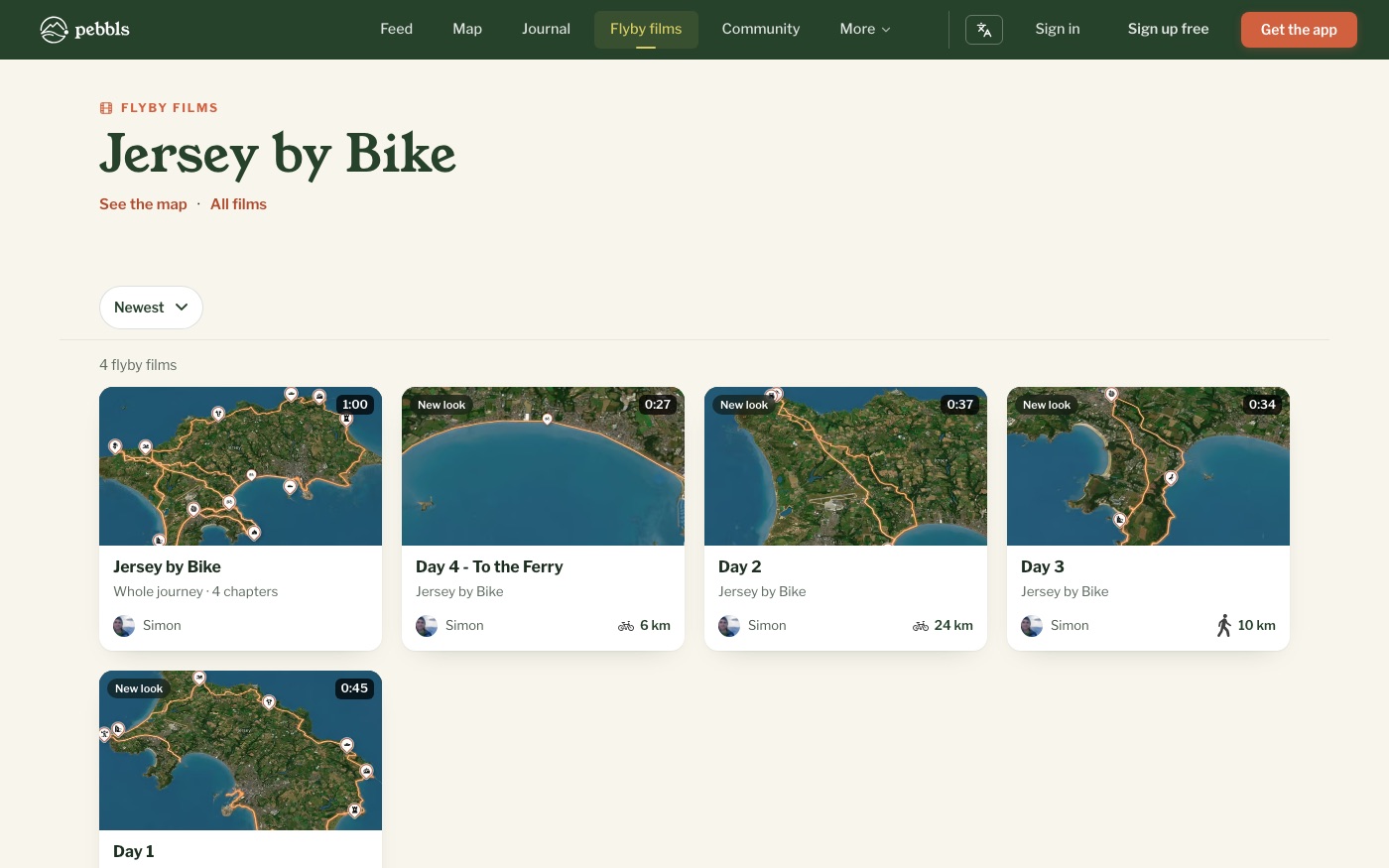
- Website: www.pebbls.com/flyby-videos (switch between Everyone and People you follow), at the top of each chapter in the journal, Watch flyby on the map, your profile's flyby tab and community flyby tabs
Download and share
From the player choose Share film (sends the film itself), Share link or Save. Saved films go to your phone's photo gallery. The QR code button is next to each journey on the Flyby films screen.
Reactions and comments
Flyby films have reactions and comments, just like Pebbls: in the film viewer on the website, at the top of journal chapters and on flyby posts in the feed. You see them on your Notifications screen.