Adventure map
Every journey on one map
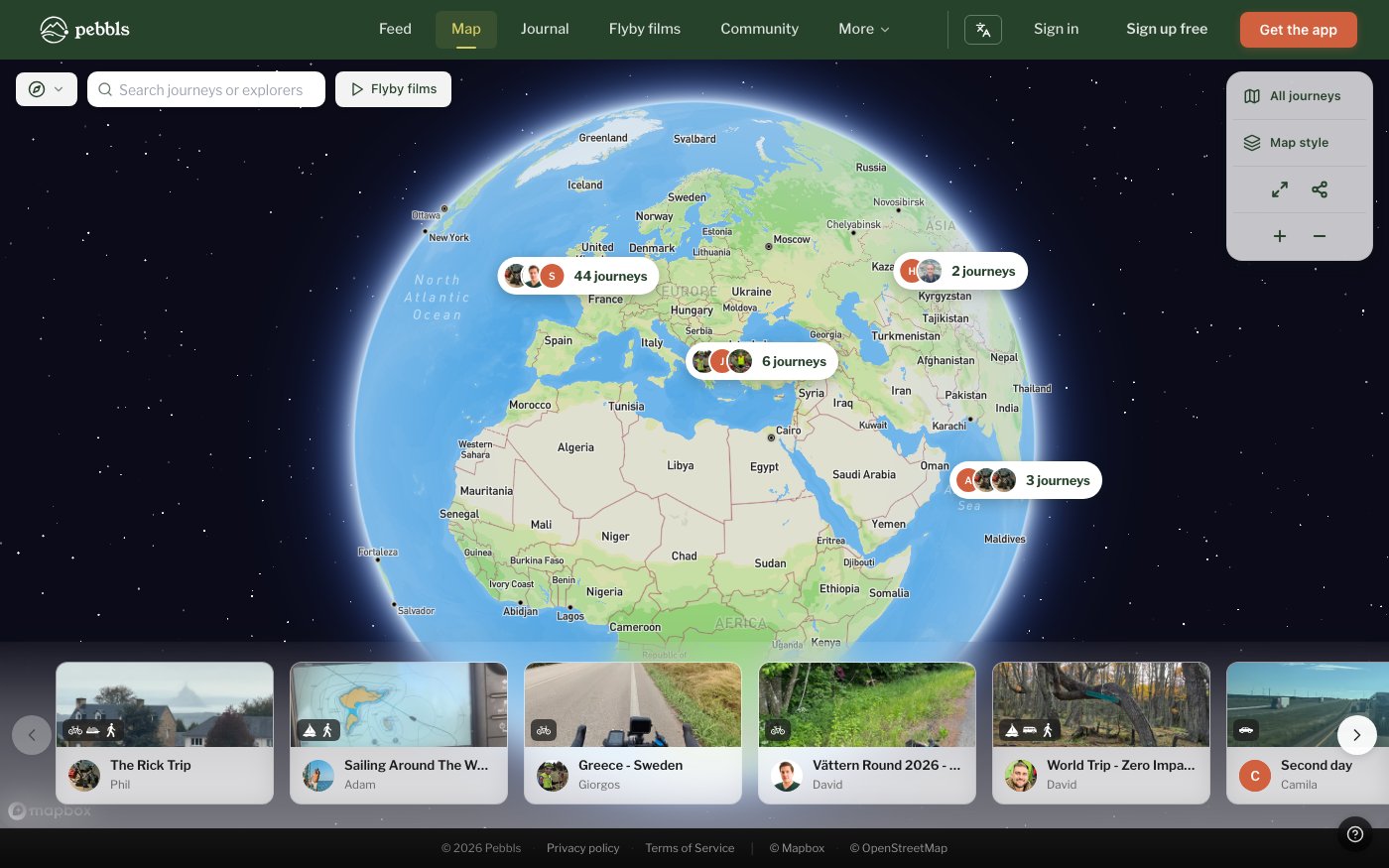
www.pebbls.com/adventure-map opens on a globe with every public journey. Journeys close together are grouped into one bubble ("5 journeys"); click it to zoom in. Journeys that start at the same spot open a list to pick from instead. Click a journey on the map, or a card in the carousel along the bottom, to open its route and Pebbls. Your own journey link (pebbls.com/adventure-map/you/journey) opens straight on that journey. On your first visit a short tour points out the journey carousel, the map controls, the Pebbl navigator and the keyboard shortcuts.
Finding journeys
At the top left you can filter by type of travel (Walking, Cycling, Sailing and so on; only types that have journeys are listed, each with a count), search for a journey or an explorer, and jump to Flyby films.
Map controls
- All journeys: back to the overview
- Fit journey and Latest point
- Map style: Pebbls Adventure, Morning Mist, Midnight Explorer, Eagle Eye (satellite), Sky Navigator, Urban Trail or Treasure Map
- Translate: show Pebbl text in your language or the original
- Fullscreen, Share and zoom. On a phone, Translate, Map style and Share are under More
- Keyboard: F fits the journey, L jumps to the latest point, H shows all journeys, arrow keys move between photos and Pebbls, Esc closes
An open journey
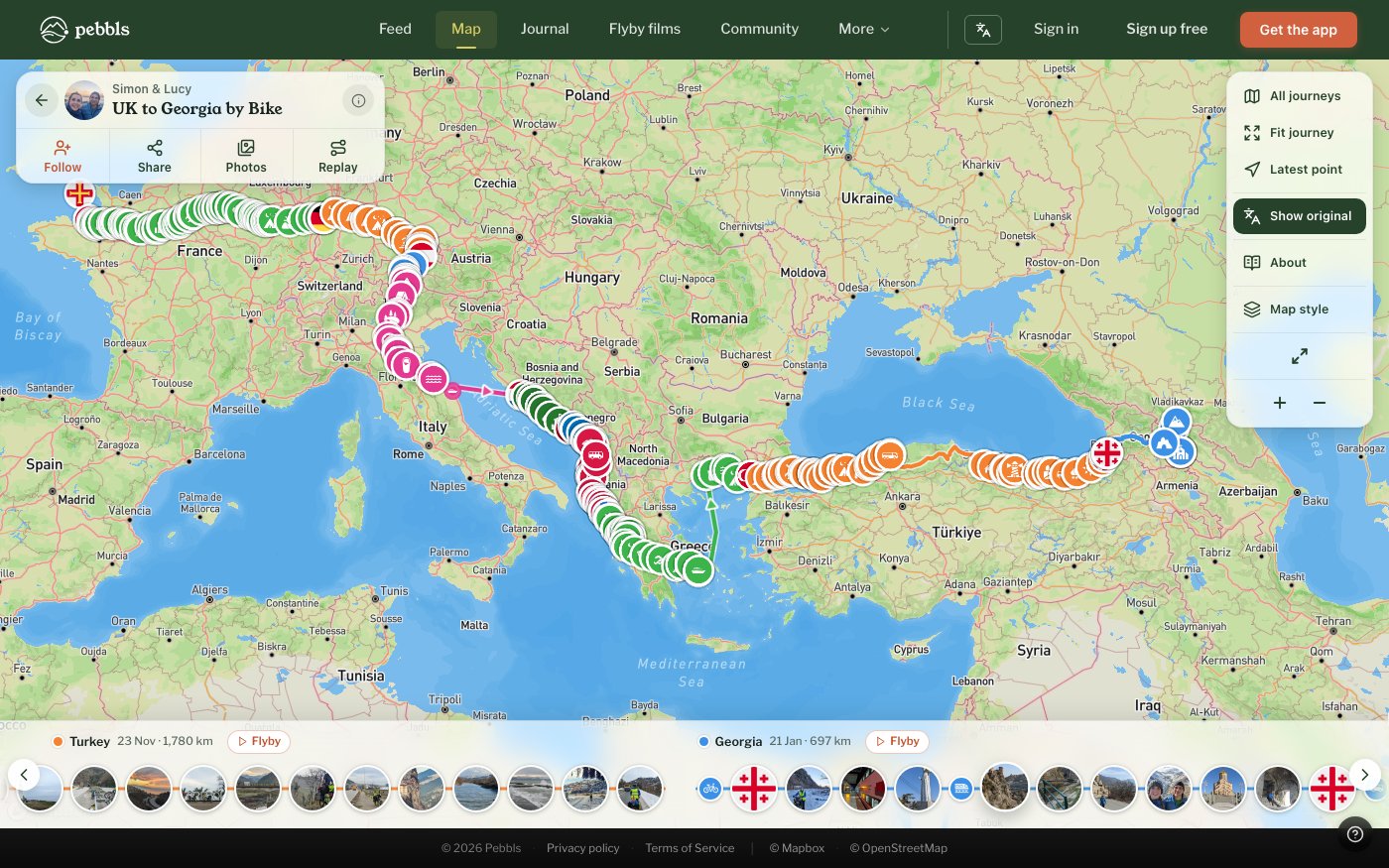
Open a journey and its card sits at the top left, with its cover photo, the journey's name and who made it. Follow along sends you a message when they post, Share gives you the link and ways to send it (see "Share your journey"), Photos plays a slideshow and Replay draws the route as an animated map. When the journey has a film of the whole trip, Watch the whole journey plays it. While a trip is under way the card also says where they were last seen, with their newest photo; click it for more, and Show on the map. On a phone the card folds down to a thin strip once you move or zoom the map; tap it to open it again. Along the bottom, each chapter has its name, the day it started and its distance. Click the name to fit the map to that chapter, then About for its details. Flyby plays the chapter's film.
Journey and chapter details
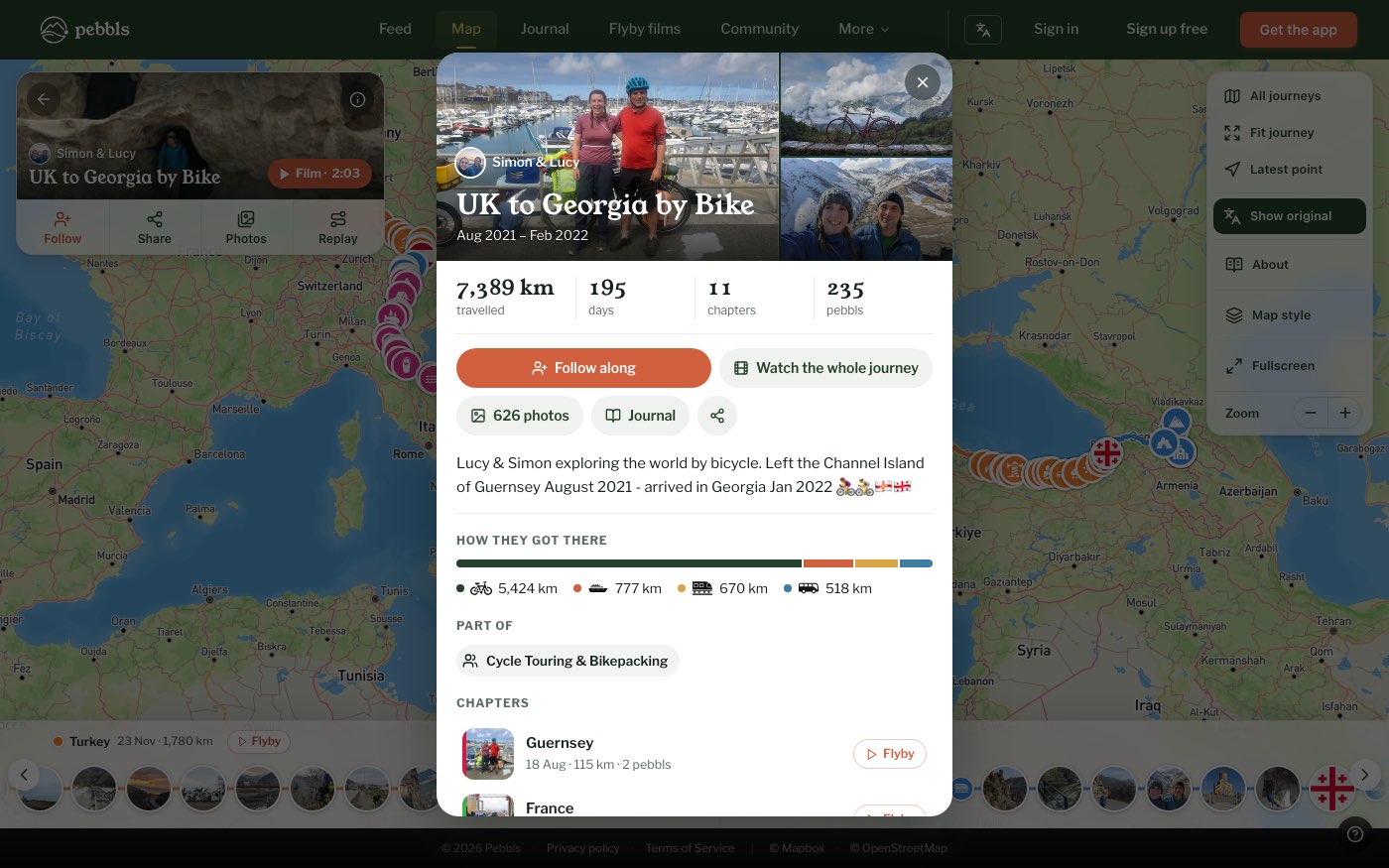
The ⓘ button opens the journey's details: its best photos, the distance, days, chapters and Pebbls, how they got there (by bike, ferry, train and so on) and every chapter with a photo and, where there is a film, a Flyby button. A chapter's details show its dates, distance and metres climbed, its photos, a height chart and the chapters before and after it. Download the route is at the bottom of both. It's free for your own journeys; other people's need Explorer.
A Pebbl
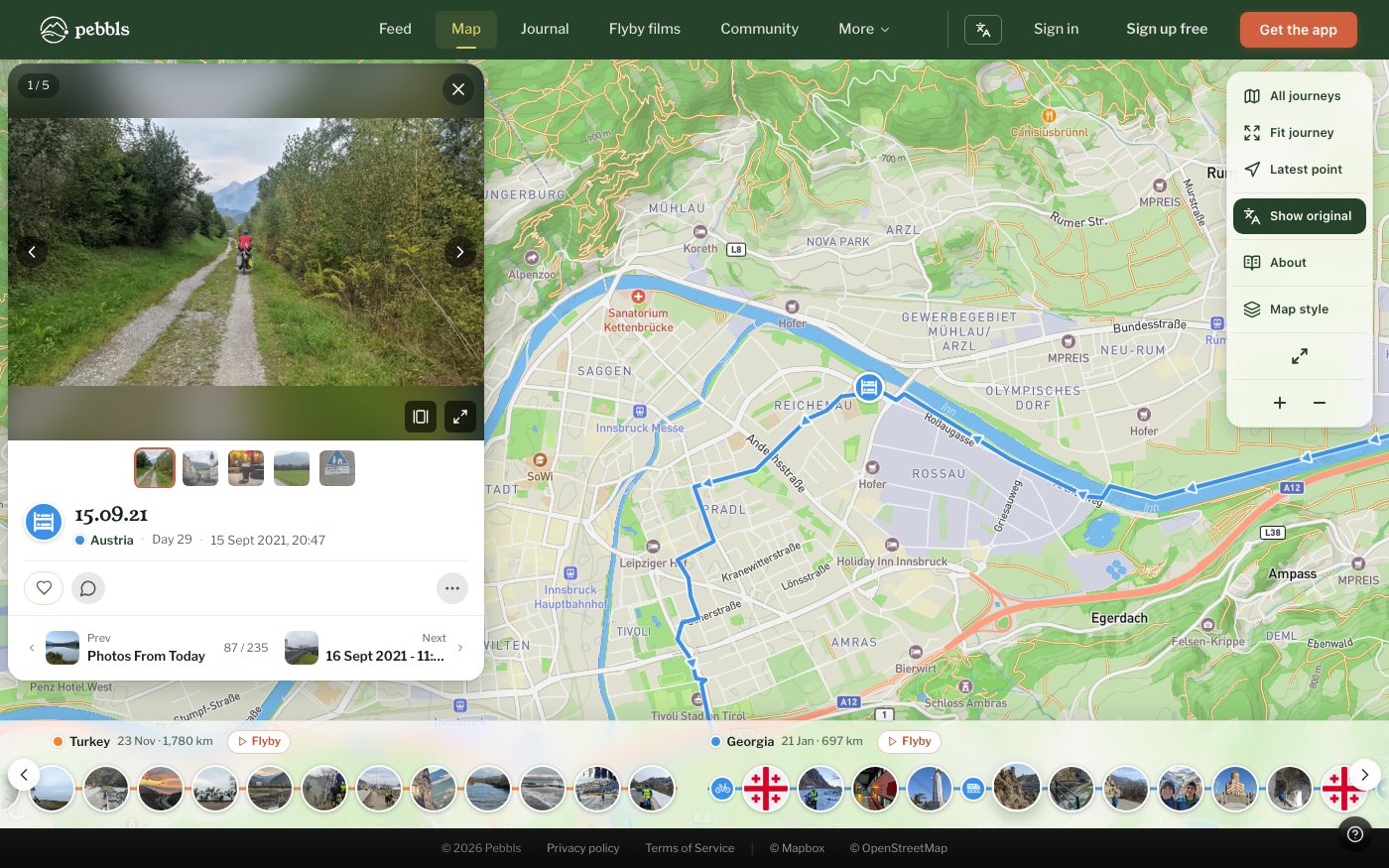
Click a photo along the bottom or a Pebbl on the map to open it. Under the photo you see the chapter, the day of the trip and when it was taken; click the chapter to open its details. A long note shows its first lines with Read more, and Show the photo takes you back to the picture. Slideshow plays the photos, and the button in the photo's corner shows it full screen. React and comment below that, and the ··· menu has Share and Report. Previous and next show the Pebbls either side, with their photo and name, and the arrow keys do the same.
On a phone
Tap a Pebbl and it opens as a card from the bottom. Drag the handle up to see the whole pebbl, or down for more of the map or to close it. Tap either side of the photo, or swipe, for the next photo or Pebbl.
Slideshow
Click Photos on a journey or chapter to play its photos full screen. Set the interval, press Space to pause, use the arrow keys to move between photos and Esc to close. The slideshow has its own link you can share.
Live journeys
While a journey is being tracked the panel says Still travelling, with a red dot when they're live, and the map refreshes as new points arrive. It also tells you when someone goes live or stops. Follow on the map controls keeps the map centred on the moving marker.
Journeys that haven't started
A journey with nothing on the map yet shows a card instead. If it's yours, it says the journey is ready to go and how to start: open the app and start a chapter when you set off. Copy the link lets you send it before you leave, and people who follow it get a message when your first pebbl goes up. Visitors see that you haven't set off yet, with Follow.
Planned routes
A route you kept as a plan, for example from Route to video, shows as a dashed line, and its chapter says Planned route with the distance, such as Planned route 42 km. A plan doesn't count towards your distance. If a journey only has a plan so far, the map opens on it.
Sailing chapters
A chapter on a boat you sail or skipper yourself, such as a sailing boat, a catamaran or a motor boat, shows its distance in nautical miles (nm). Ferries and cruise ships stay in km. The chapter's details on the map and its page in the journal have a card for the passage: where it left from and arrived, the times, the time at sea, the average speed and any nights at sea. A chapter with several passages lists them as rows; click one to open its card. The chapter's flyby film counts nautical miles too, and its end card adds the time at sea. A journey with sailing and land chapters shows both, such as 1,240 km (318 nm at sea).
Password-protected journeys
Enter the password the owner gave you (the site calls it an access code). The page remembers it for 24 hours; Lock Journey forgets it sooner.