Starting a new journey
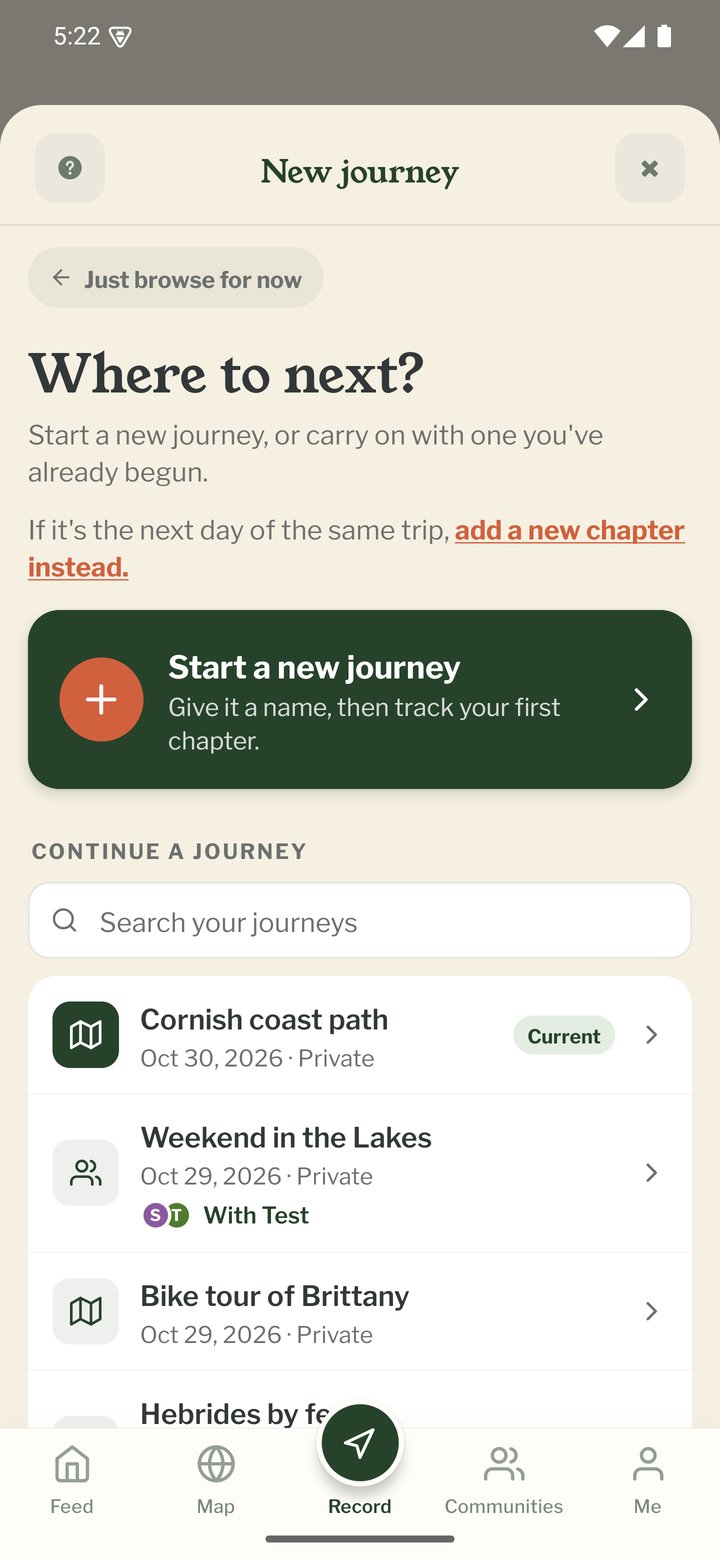
Where to next?
Your first journey starts from the welcome cards (see "Your first launch"). After that, starting a journey opens Where to next?: a Start a new journey card at the top and, underneath, a searchable list of your journeys, newest first, with your current one marked. Pick one from the list to carry on with it instead. If it's the next part of the trip you're on, tap Add a chapter to (the journey's name), under Start a new journey; it opens the New chapter screen.
How will the route get onto your map?
The first thing on the New journey screen is how the route gets onto your map. Record it as I go is chosen to begin with: your phone tracks the route while you travel. Add a trip I've already done is for a trip that's over, from a route file on your phone (a GPX file), for example one saved from Strava, Komoot or a GPS watch. Add a route I'm planning also takes a route file; it shows as a dashed line and doesn't count towards your distance. For these two, tap Choose the route file and pick the file. If the boxes for the journey and the first chapter are empty, they take the name from the file, and you can add the places marked in the file as pebbls. The button at the bottom says Choose a route file first until you've picked one, then Add this trip (or Add this route). Nothing is made until you tap it. The route shows on your map a few minutes after the file has uploaded. If your trip is in several files, add each one afterwards as a chapter (see "Starting a New Chapter").
Not travelling yet
Most people sign up before the trip. On your first New journey screen, tap Not travelling yet under Start tracking. When does your trip start? lets you Pick a date, from tomorrow on, or tap I don't know yet. With a date, Pebbls sends one reminder at 08:00 that morning, Off today?, which opens the New journey screen. With I don't know yet you get one reminder a week later, and nothing after that. Reminders don't come at night or in your quiet hours, and they stop once you've made a journey. If notifications are off for Pebbls on your phone, the date is saved but there's no reminder.
Name your journey
Starting a new journey opens one screen with everything on it. Give the journey a name of at least 3 characters. Be specific: "Walking the Cotswold Way" reads better than "Trip". You can change it later under JOURNEY › Edit Journey.
How are you travelling?
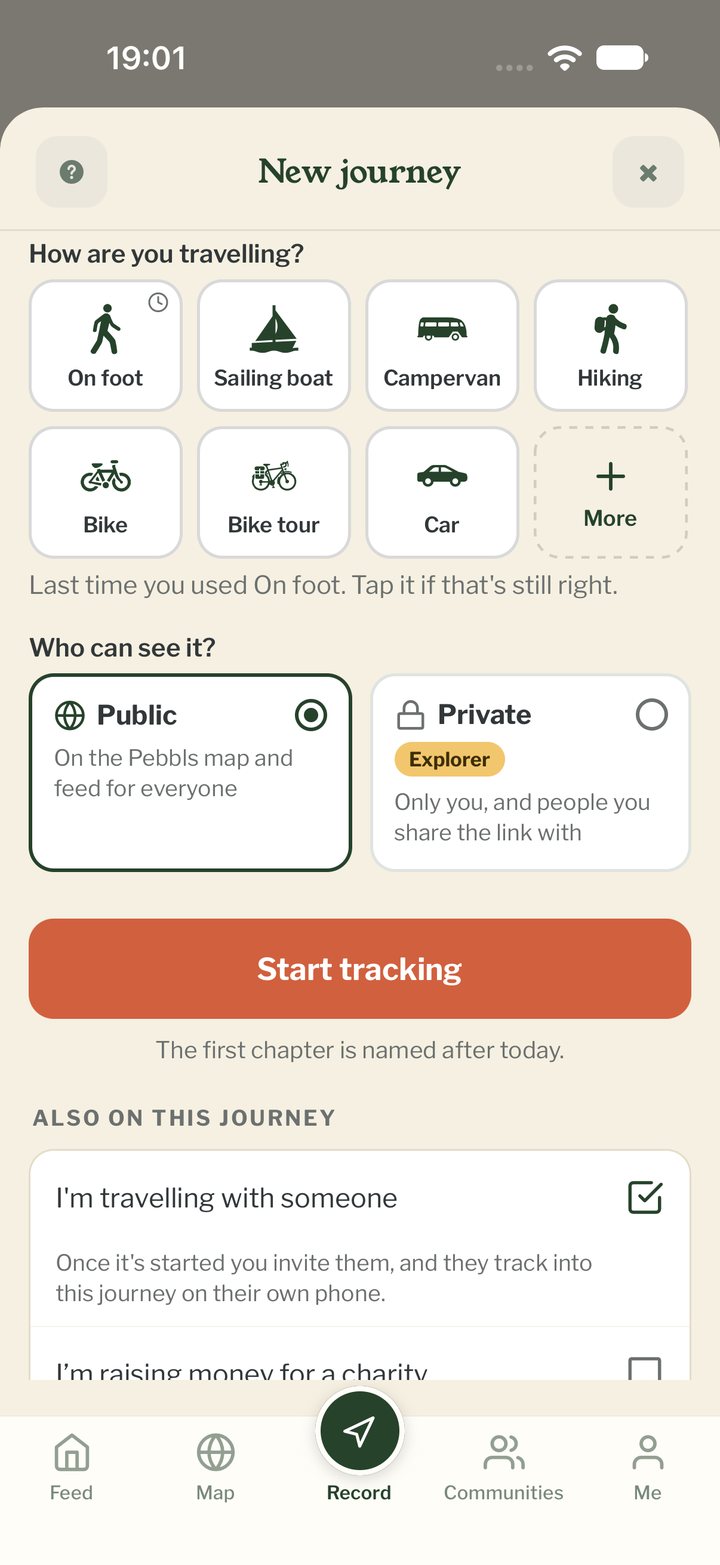
Tap one of the tiles, or More for the full list. Your last three transports come first. Pebbls only picks one for you when the journey's name says how you're travelling ("Suggested from your title"). Otherwise nothing is picked: the transport you used last has a small clock in its corner and the line "Last time you used Bike. Tap it if that's still right." If you tap Start tracking without picking, it asks you to choose how you're travelling. The clock goes as soon as you tap a tile, and you can change transport at any time while tracking.
Who can see it?
Public journeys appear in the feed, on the adventure map and in the Explorer Directory. Private keeps the journey off the public map and feed: only you, and people you send the link to, can see it. Private has an Explorer badge; if you're not an Explorer, tapping it shows what Explorer adds and how to try it. A private journey can also have a password (6 to 20 characters, no spaces).
Travelling with someone
Under Also on this journey, tick I'm travelling with someone. Once tracking has started and you've read the You're on your way card on the Record screen, Travelling with opens so you can invite them. They track into this journey on their own phone. You can also invite someone later from JOURNEY › Travelling with.
Also on this journey
The same list has I'm raising money for a charity (next you add your donate link and target, see "Fundraising on a journey") and This is a test (private, no flyby film, not counted in your badges and deleted after 48 hours). Under them are three rows that open: Description, Add it to a community (public journeys only) and Hide where you start and finish, the location masks for the start and end of the first chapter. If you're not an Explorer, from your second journey a single row underneath shows what Explorer adds. Your first journey doesn't have it.
Test journeys
A journey marked This is a test shows TEST and the hours it has left at the top of the Record screen. To keep it as a normal journey, tap that label, or go to JOURNEY › Edit Journey, and tap Keep this journey. About 6 hours before the end, the app also asks once whether to keep it or let it be deleted. On the website, My journeys shows Test · deleted in N h on a test journey. The … menu on each journey there has Mark as a test, or Keep this journey if it's already a test.
Your first chapter
The First chapter box shows the first chapter's name before anything is made: today's, such as "Saturday 7th", or the name in the route file when you add a trip from a file. Change it if you like; left empty, it's named after the day. Start tracking makes the journey and its first chapter and turns tracking on straight away. The You're on your way card on the Record screen shows how to add a pebbl.
Starting another journey later
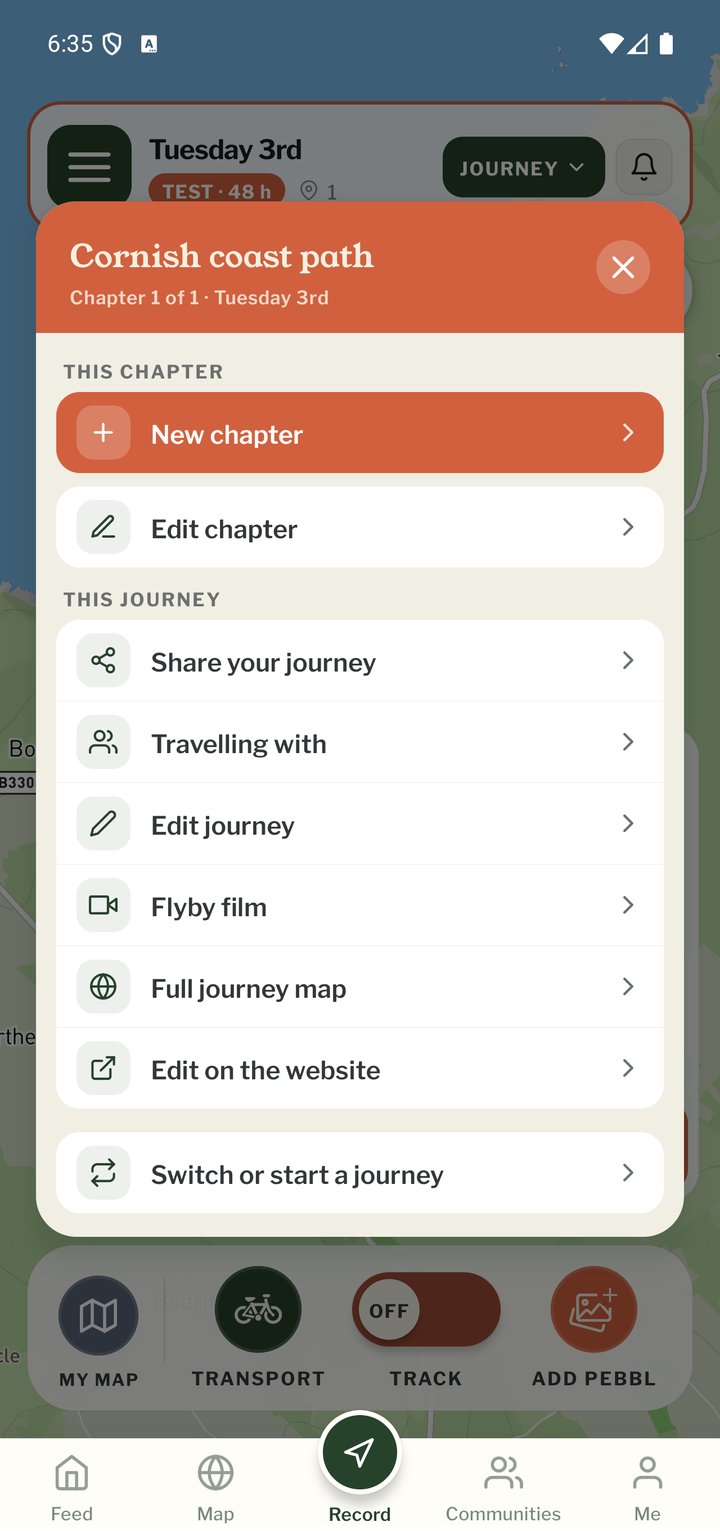
Tap JOURNEY at the top of the Record screen and choose Switch or Start a Journey (tracking must be off first). It opens Where to next?, so you can start a new journey or go back to an earlier one. Your previous journey is kept.