Starting a new chapter
What is a chapter?
Chapters are the sections of your journey, like chapters in a book: a day, a stage of a route, a country. The Record screen in the app shows the chapter you are currently recording; My map shows them all together. Breaking a journey into chapters makes it easier to read, and each chapter can get its own flyby film.
Creating a new chapter
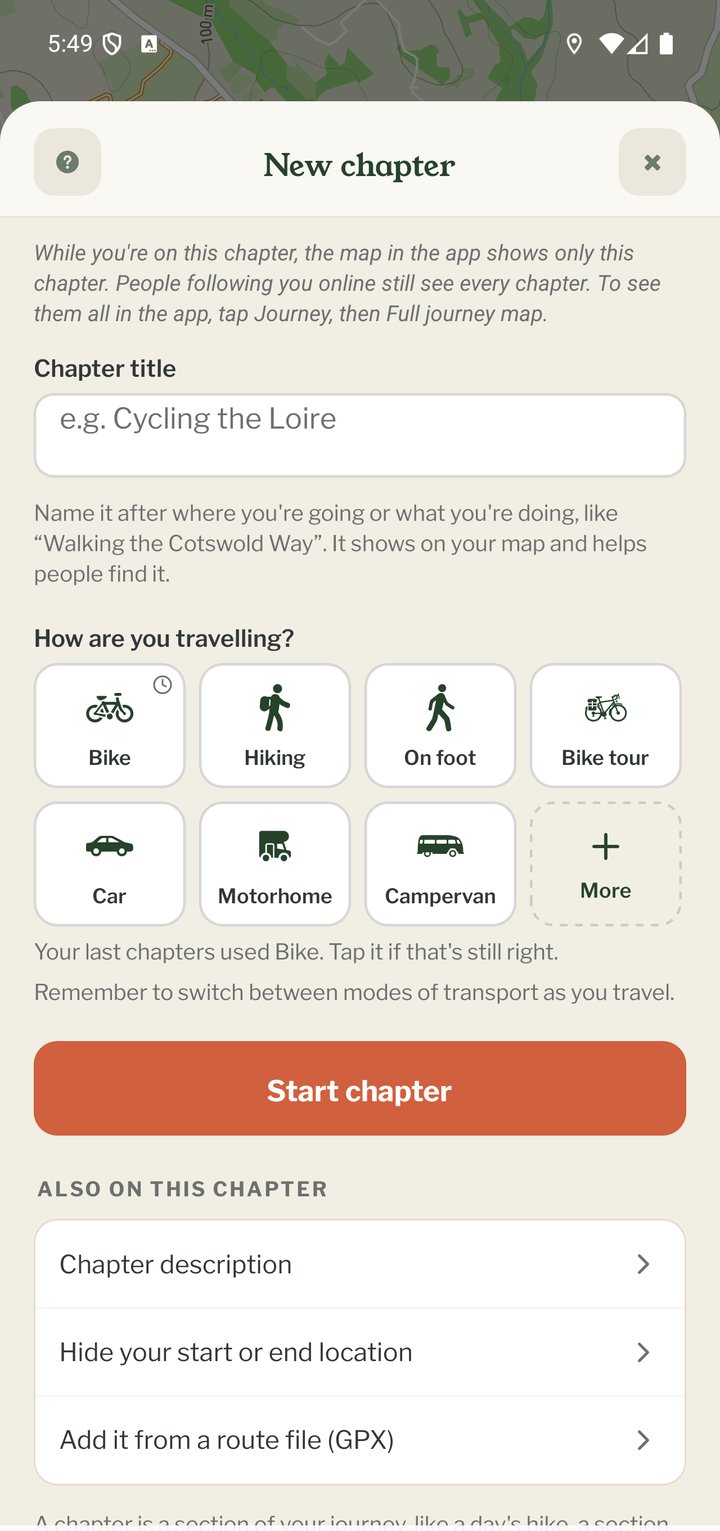
Stop tracking, then tap JOURNEY › New Chapter. Everything is on one screen:
- The chapter title. The box starts empty, with an example such as “Coast path to Ventnor” and a hint to name it after where you're going or what you're doing. The name shows on your map and helps people find it. Leave it empty and the chapter is named after the day, such as “Thursday 29th”
- How you're travelling: seven tiles, your last three transports first, and More for the full list. Pebbls only picks one for you when the chapter's name or description says how you're travelling ("Suggested from your title"). Otherwise nothing is picked: the transport your last chapters used has a small clock in its corner and a line such as "Your last chapters used Bike. Tap it if that's still right." A tile you tap stays picked, and you can change transport at any time while tracking
- Start chapter. If you haven't picked how you're travelling, it takes you back to the tiles and asks you to choose. Then the Record screen asks whether to start tracking
- Add a chapter I've already done (GPX file), right under Start chapter, builds the chapter from a route file instead (see below)
- Also on this chapter, under that: Chapter description and Hide your start or end location
Hiding your start or end
Tap "Hide your start or end location" to set a location mask for the start and end of the chapter: No mask, 500 m, 1 km or 3 km. Masks hide the part of your route nearest to your home or campsite; see "Location Masking".
Import from GPX
Tap Add a chapter I've already done (GPX file), under Start chapter, to build the chapter from a track you already have, for example from a GPS watch or a route-planning app; the button then says Import chapter. The file needs at least 10 track points. Waypoints in the file can be imported as Pebbls. You can also start from your journey's map in the app: after the last chapter, Add a chapter to (the journey's name) has Record it and From a GPX file, and both add the chapter to that journey. Importing a file only works in the app; on the website, the journey editor's GPX button tells you where to find it. You can still add Pebbls along the imported route afterwards. It is marked Beta; tell us if a file fails.
While the route arrives
Straight after an import, the journey map may say Your route from the GPX file is on its way. It usually shows within a minute or two, so there's no need to import it again. Check again looks once more. If it still isn't there after 10 minutes, the map says so: check the Uploads screen in the app, or import the file again.
Editing a chapter
JOURNEY › Edit Chapter lets you change the title, description, start date and location masks, fix the line with Edit GPS Track, download the chapter as GPX or delete the chapter. See "Editing a Chapter" and "Fix your route with the track editor".