Change transport, fill a gap, remove or redraw a stretch
Changing the transport
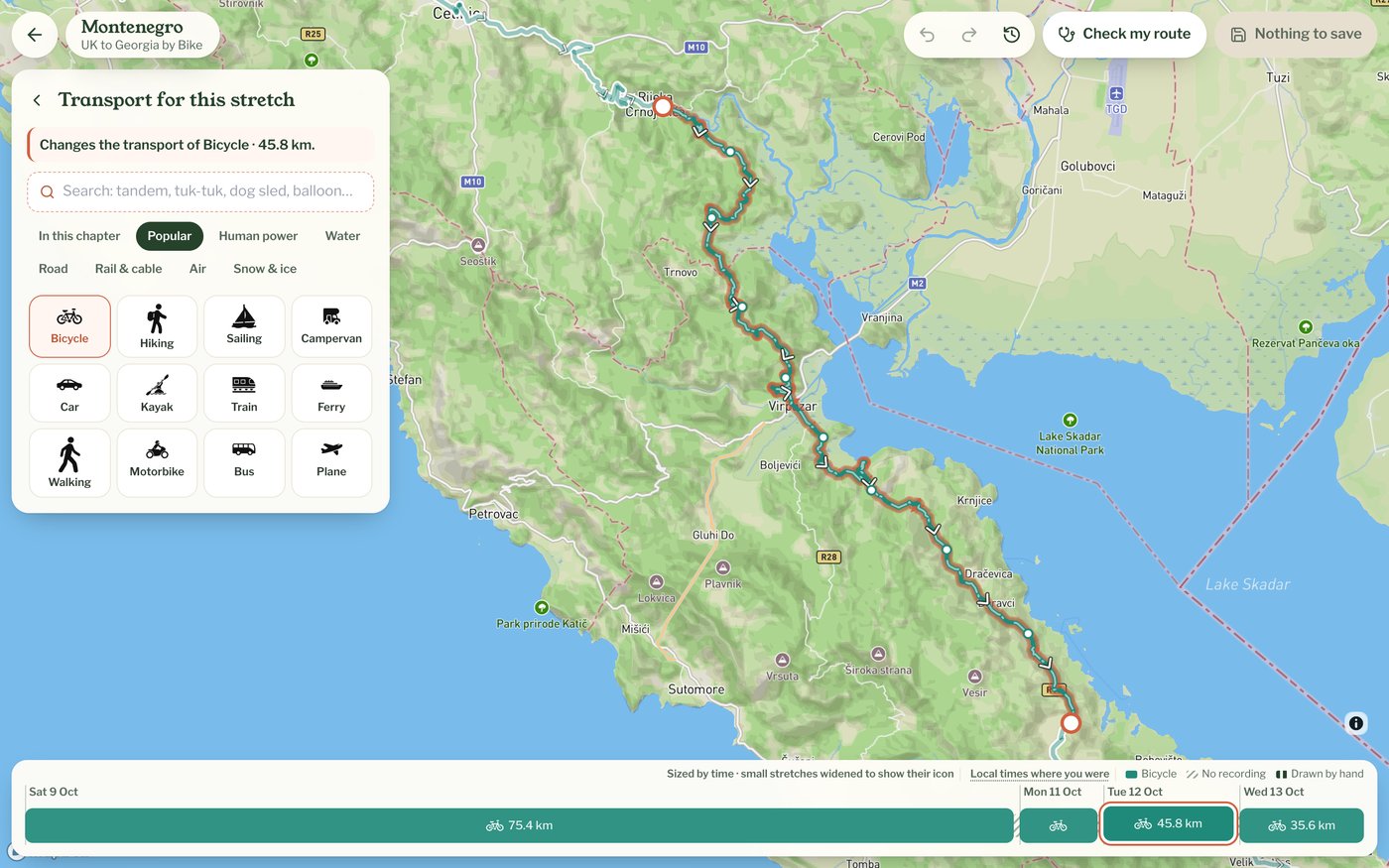
Pick the stretch and choose Change transport. The transports already in this chapter come first, Popular and the groups such as Road or Water have the rest, and you can search too (a tandem or a tuk-tuk, say). Picking one changes the whole stretch. To change only part of it, split it first (see "Bend, move and split the line").
Filling a gap
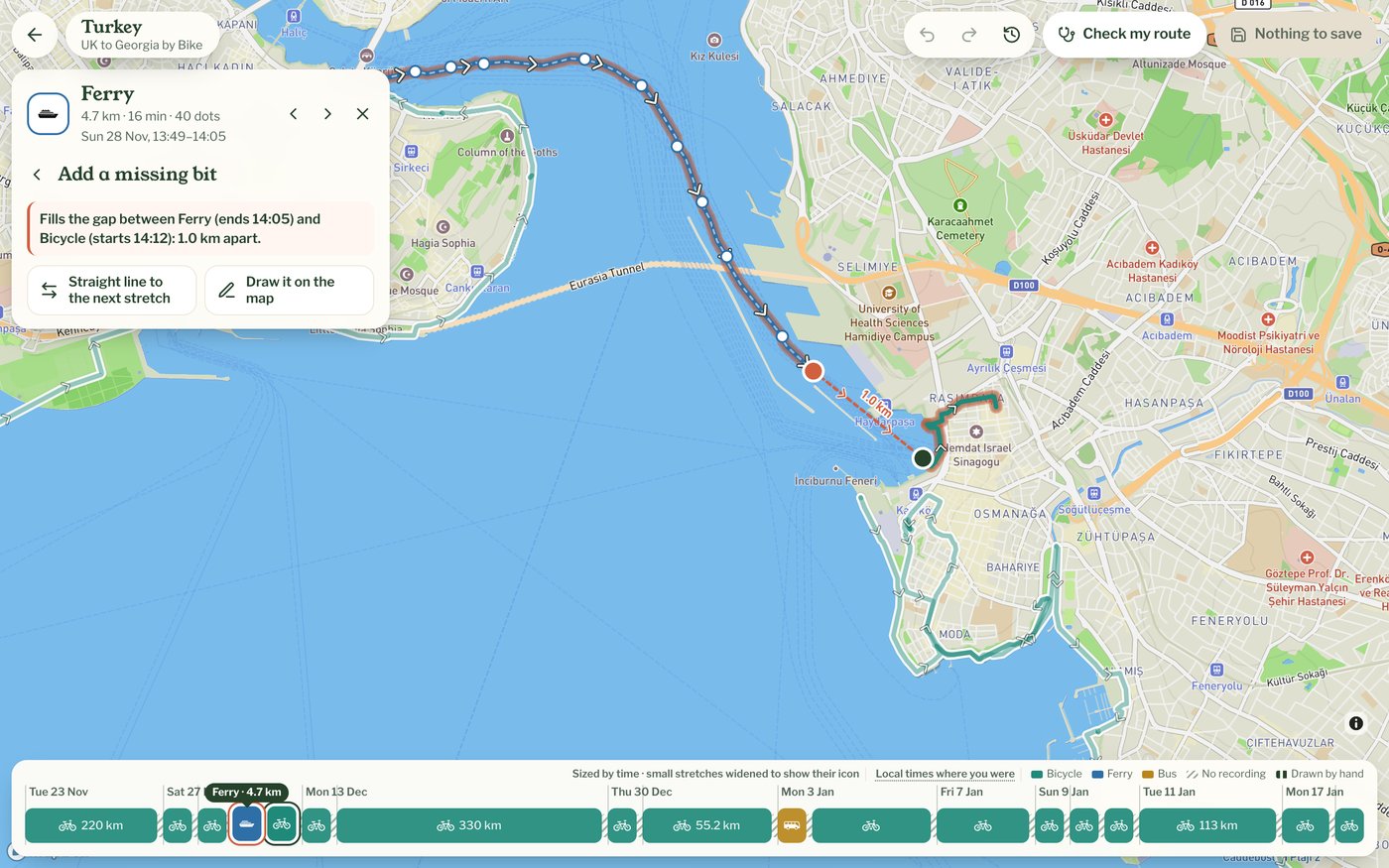
When the phone lost signal or the app was paused, the list of stretches says Nothing recorded for, then how long and how far. Pick the stretch before the gap and choose Add a missing bit. The map shows the gap and its distance. You then choose the transport for the new bit, and it counts towards the chapter's distance.
- Straight line to the next stretch joins the two ends directly, which is fine for a ferry crossing or a short hop
- Draw it on the map: click along the way you went (at least two points) and press Done. The line joins your clicks
Removing a stretch
Remove this stretch takes a whole stretch off the map, such as the drive home you forgot to stop tracking. To take out only part of one, split it first. The stretch stays in your recording: before you save, Undo brings it back, and after saving you can use Undo the last save in History or Restore the original route.
Redrawing a part
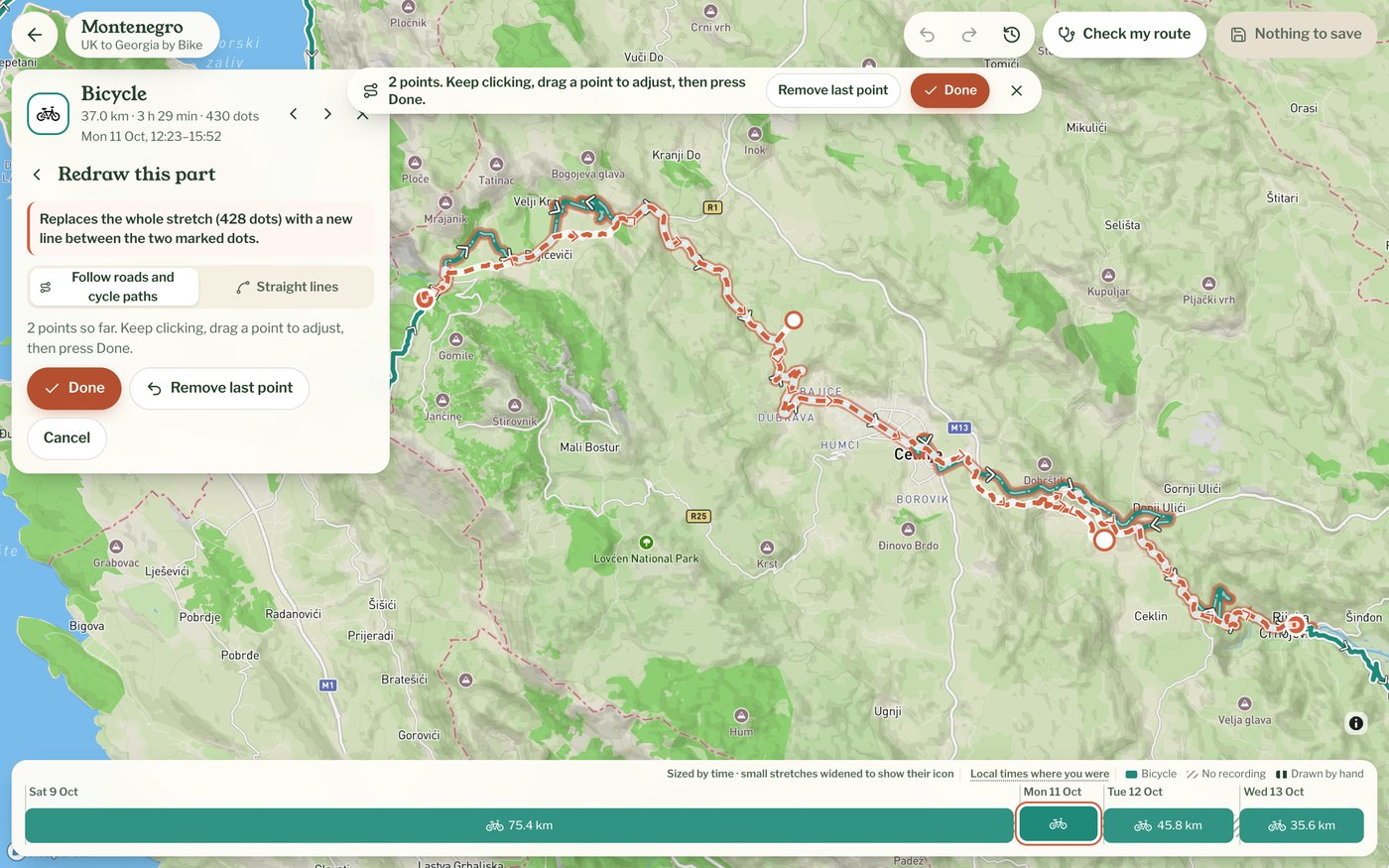
When a stretch is a tangle, for example in a city where tall buildings threw the GPS about, it can be quicker to draw it again. Pick the stretch, choose Redraw this part, click along where you went and press Done. The new line runs between the two ends of the stretch, marked on the map. For walking, cycling and driving it follows paths or roads between your clicks, and Straight lines joins them directly instead. With roads or paths chosen, pressing Done without clicking at all snaps the stretch to the nearest ones. Other transport, a train or a ferry for example, is drawn as straight lines between your clicks.
Under More
- Join with the next stretch makes two stretches one, for when a single bus ride was cut in two
- Move this stretch in the order is for the rare stretch that sits in the wrong place. It suggests a place by the recorded times, or you can choose on the map. The order normally comes from your phone and is right, so leave it unless you're sure
- Reverse this drawn line turns round a line you drew by hand. It doesn't appear for recorded stretches
- Restore the original route: see "Undo, history and going back to the original"