Fix your route with the track editor
What it's for
The track editor fixes the line of a chapter's route. Use it when the GPS cut a corner, a dot jumped off into a field, the phone lost signal and left a gap, or a bus ride shows up as a walk. It only changes the route. Titles, dates, photos and pebbls are changed elsewhere (see "Editing a Chapter"). It works on a phone, but a computer with a mouse makes the fiddly bits easier.
Opening the editor
You can only edit your own chapters.
- In the app: stop tracking, then tap JOURNEY › Edit Chapter, pick the chapter and tap Edit GPS Track. The app won't open the editor while it's tracking
- On the website: go to www.pebbls.com/dashboard, open the journey and press Edit GPS Track on the chapter
Your recording is kept
Nothing you do in the editor changes what your phone recorded. Your changes are saved on top of the recording, so you can always go back to it with Restore the original route, under More. See "Undo, history and going back to the original".
Picking a stretch
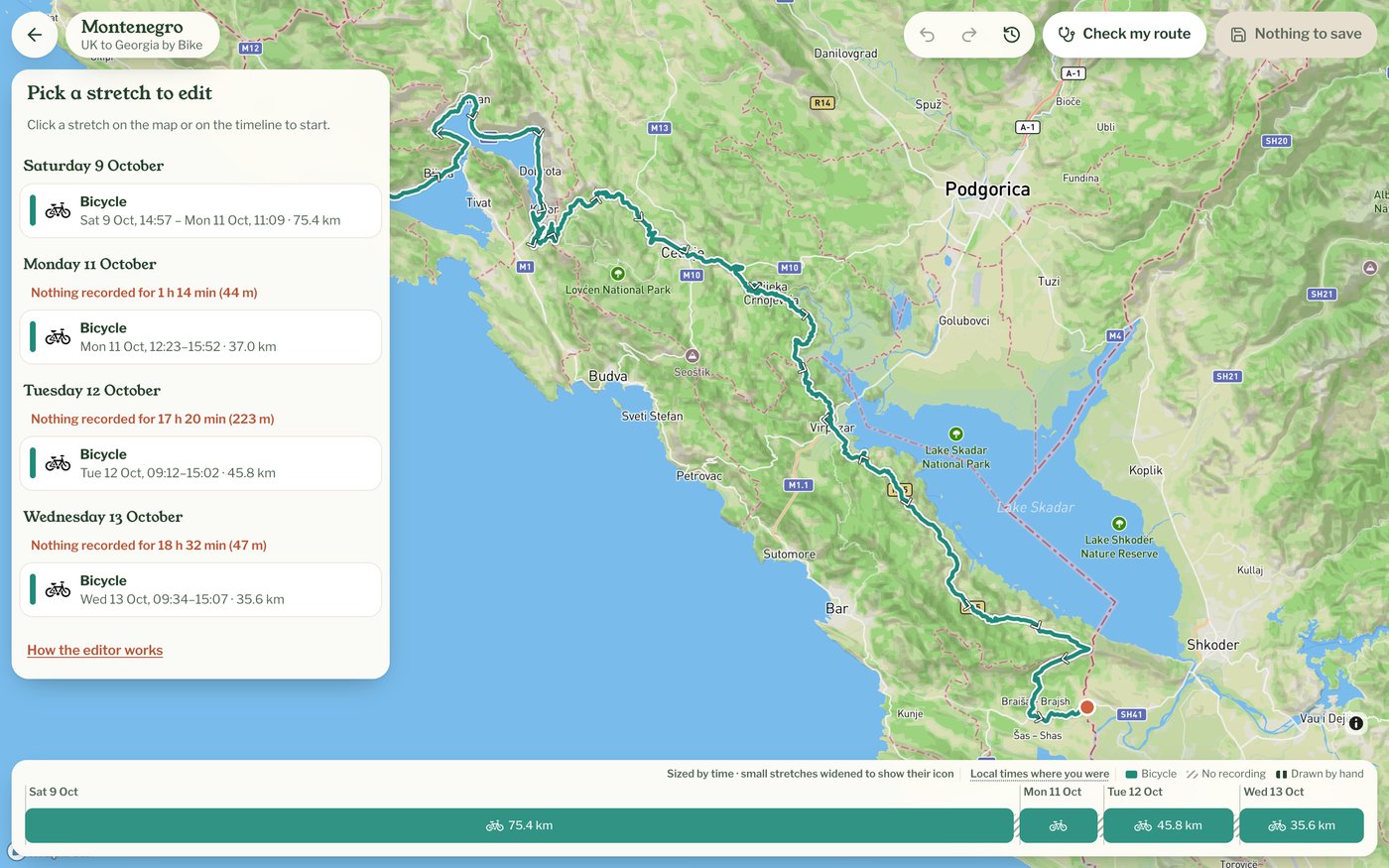
A route is made of stretches, such as a drive or a ferry crossing, and every stretch has its own transport and times. A chapter with only one stretch opens with it already picked. Otherwise you see Pick a stretch to edit, a list of the stretches by day with their times and distances. Click one in the list, on the map or on the strip along the bottom, and its card shows what you can do with it. On a phone the card sits at the bottom of the screen and you tap instead of clicking. Times are local to where you were when each dot was recorded, so a trip across time zones reads the way it happened.
Check my route
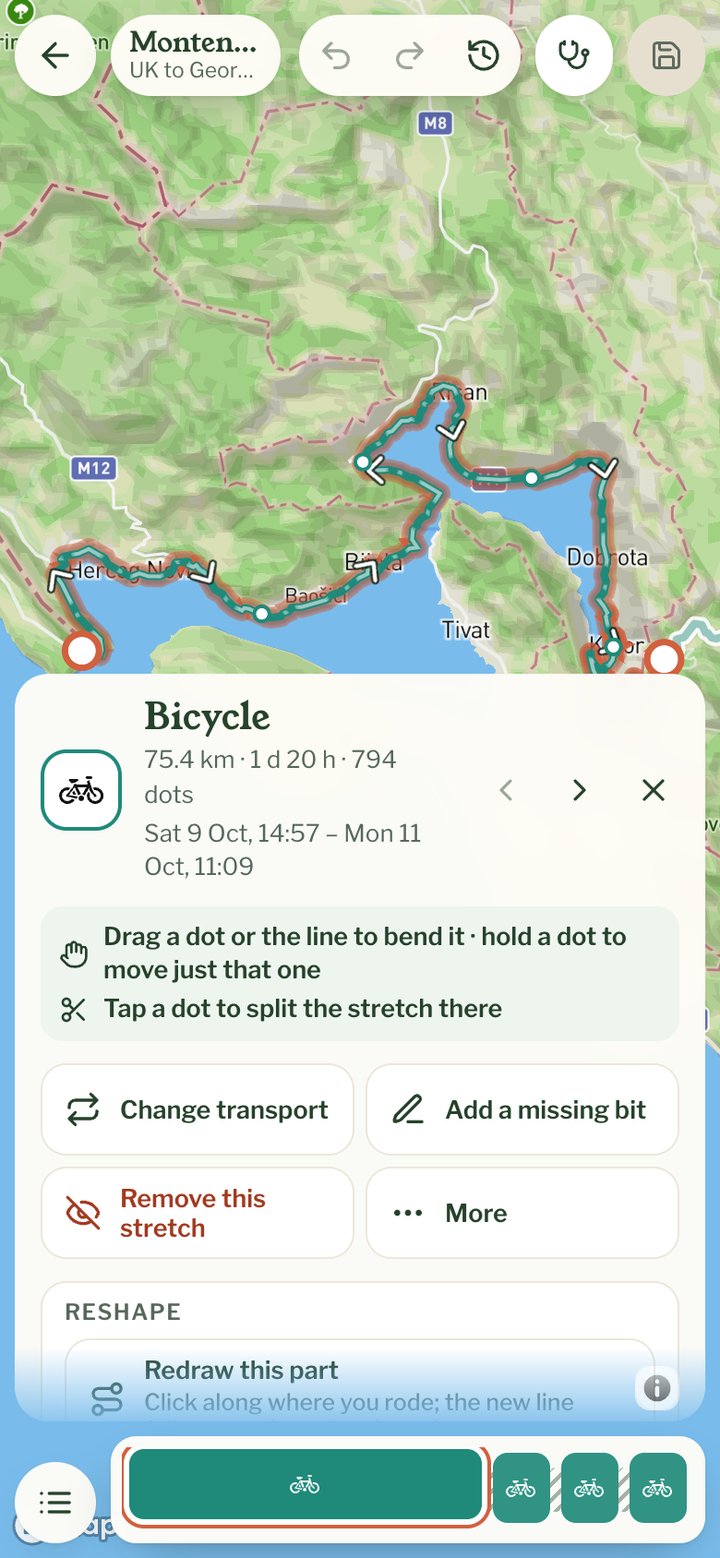
If you're not sure what's wrong, press Check my route at the top. It looks for the usual problems, such as a dot that jumps off the route or a gap where nothing was recorded, and it lists dots that were moved by hand. Click one in its list to see it on the map. Each comes with a way to fix it, such as Hide the dot or Put it back, and a way to leave it as it is.
Saving
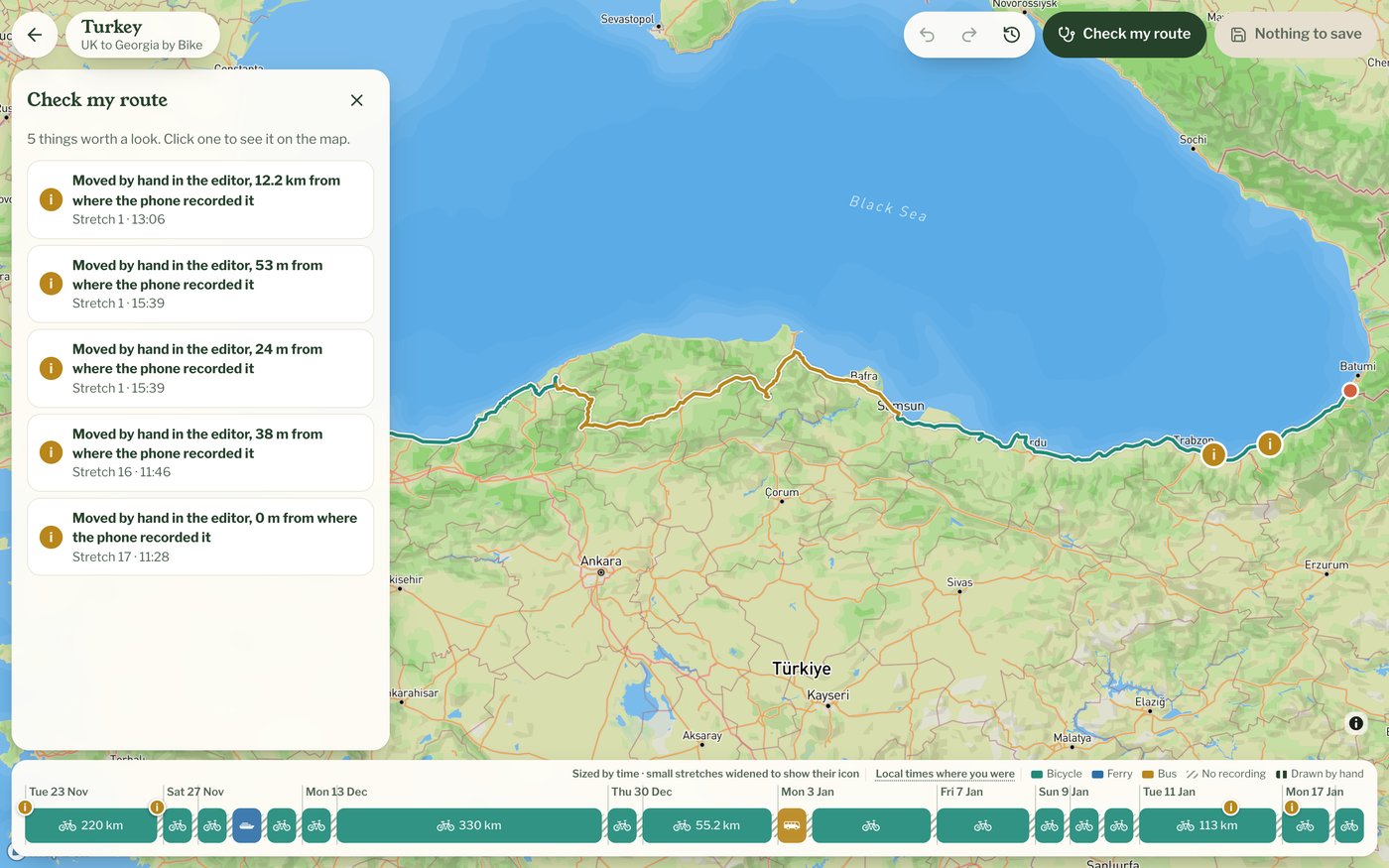
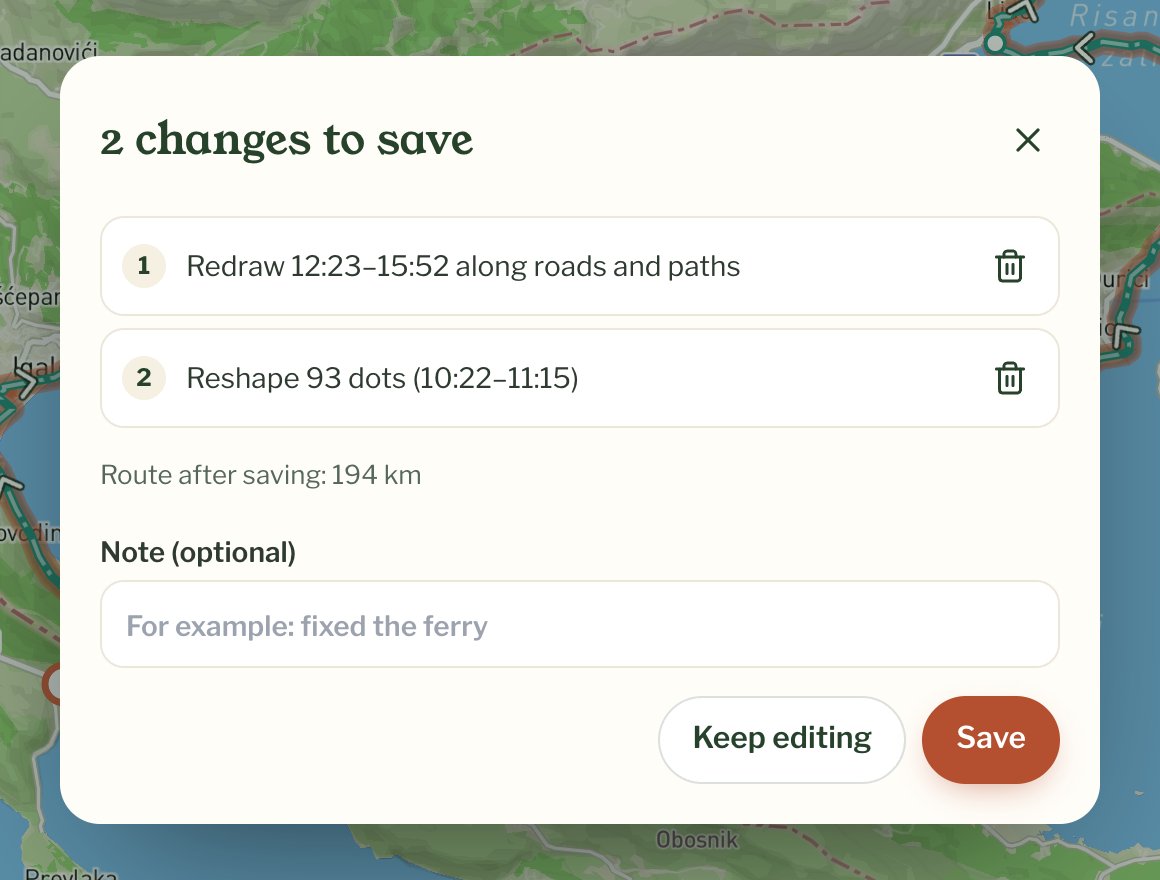
Changes aren't saved as you go. The button at the top right counts them, for example Save 2 changes. Press it to see the list, take out any you don't want with the bin, add a note if you like and press Save. Until then your changes live only on that page, so save before you close it. If you try to leave with changes not saved, you're asked first.
After you save
Your journey's map shows the new route, and the chapter's distance and GPX download follow it. Bits you drew by hand count towards the distance too. If the chapter has a flyby film, a new one is made once you've stopped editing for a while. Nobody is told about the change and the chapter doesn't move up anyone's feed.
When it won't open
Instead of the map you may see one of these. If a route looks wrong and you can't fix it, email hello@pebbls.com with the journey and chapter and we'll take a look.
- This chapter is still recording: stop tracking in the app, then open it again
- Getting this route ready: the first time a chapter opens in the editor it has to be set up, which can take a minute or two on a long one. The page tries again by itself
- This chapter isn't open in the new track editor yet: a few chapters are still being moved over. Try again in a day or two
- You can only edit your own routes: the chapter belongs to someone else