Long chapters: editing a few days at a time
Why it opens on days
A chapter that ran for weeks can hold hundreds of thousands of GPS dots, which is too many to edit at once on a phone or a laptop. So a chapter with a lot of GPS opens on a list of its days. The whole route is on the map, and while you work on some days the rest stays there as a grey line. Smaller chapters open straight in, so you won't see this on most.
Picking days
The card says how many days you can take at once, for example Choose up to 4 days in a row. The number depends on how much GPS the days hold. Hover over a day to see it on the map. Click a day to pick it, then the days either side to add them; they have to be next to each other. A very busy day says A big day, so it's edited on its own.
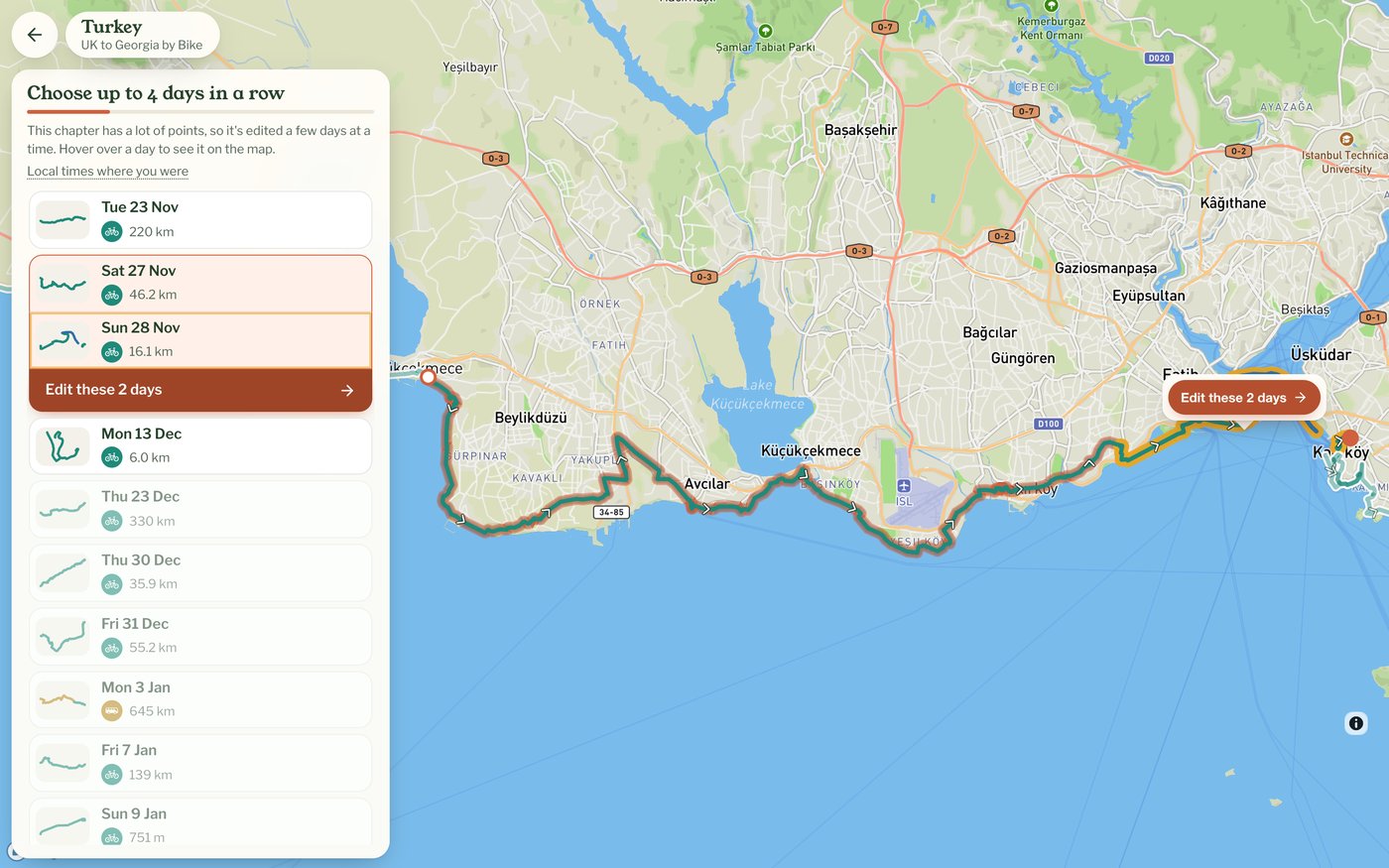
Opening them
Press Edit this day, or Edit these 2 days, under the days you picked or beside them on the map. Double-clicking a day opens just that day. On a phone, tap the days and use the button at the bottom of the card. The top of the screen then says which days you're editing, for example Editing 24 Sept – 25 Sept, and everything works as it does in a short chapter.
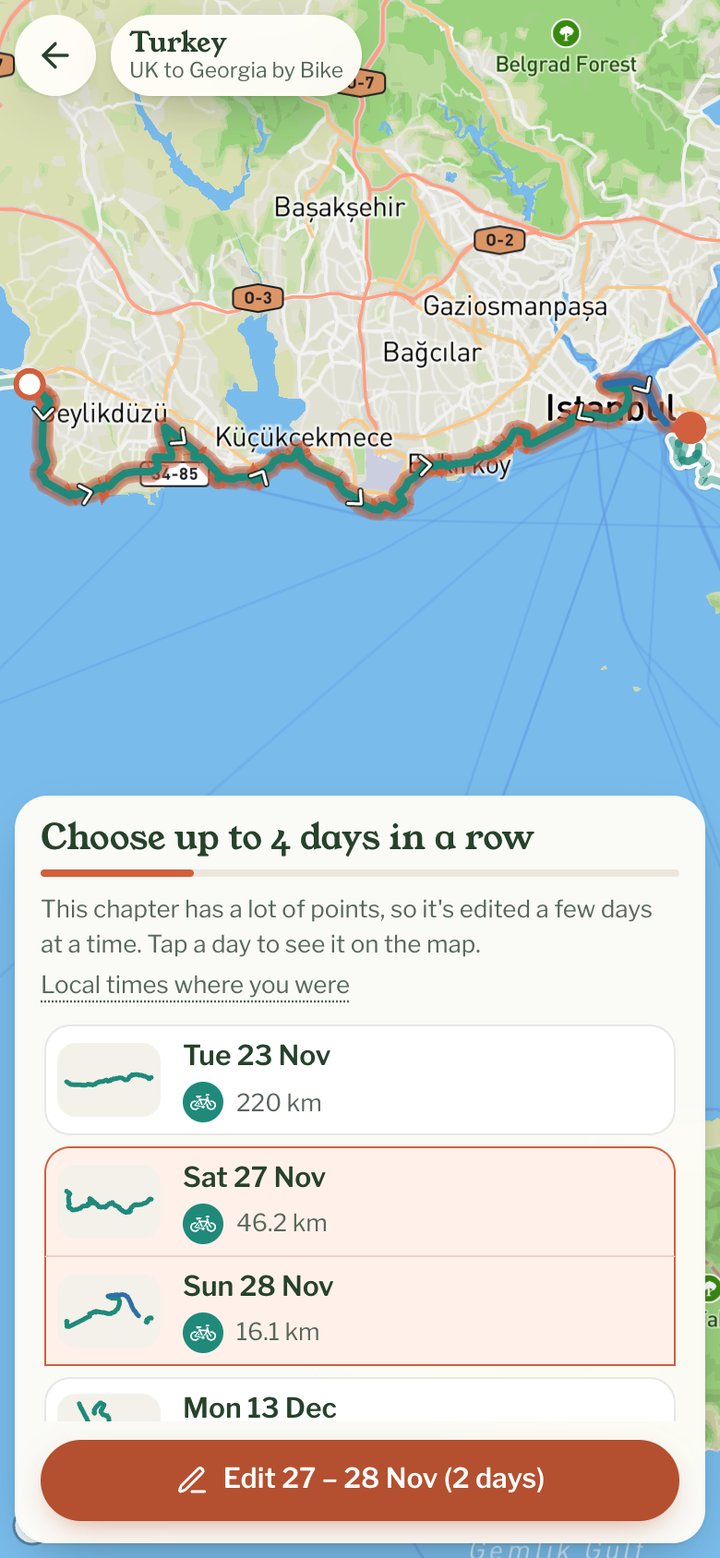
Changes across midnight
Your changes stay within the days you opened. To fix or join something that runs over midnight, open both days together.
Back to all the days
All days, at the top left, takes you back to the list. If you have changes you haven't saved, you're asked first, with Save them, Discard them and Cancel. Days you've edited and saved get a tick.