Bend, move and split the line
Bending the line
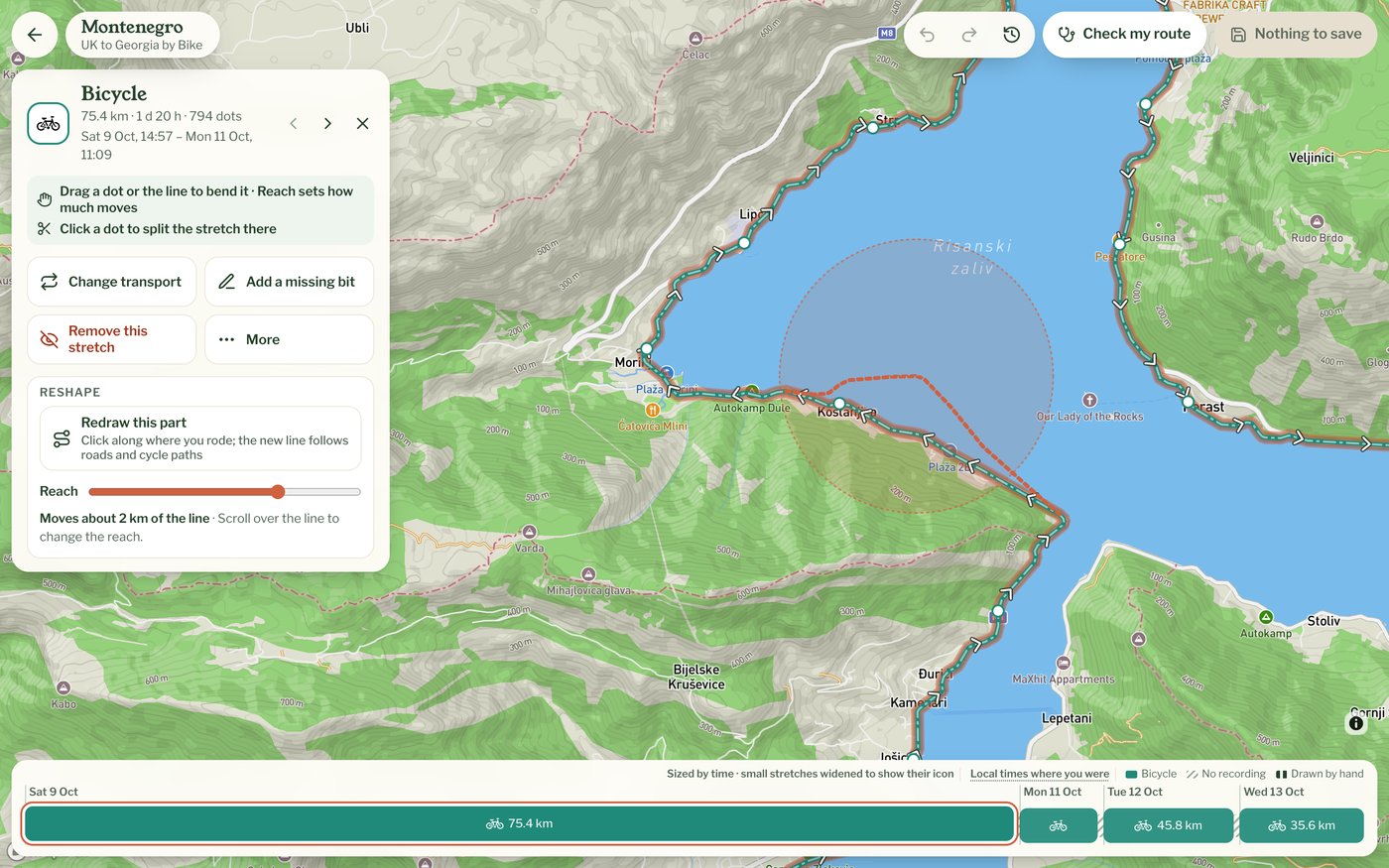
To fix a stretch that cuts a corner or wanders off the road, pick the stretch and drag the line, or any dot on it, to where you went. The line bends around the place you pulled, and the shaded circle shows how far the bend reaches while you drag. Each drag counts as one change, so Undo takes it back in one go. On a phone, drag the line with your finger, or press and hold a dot to move just that one.
Reach
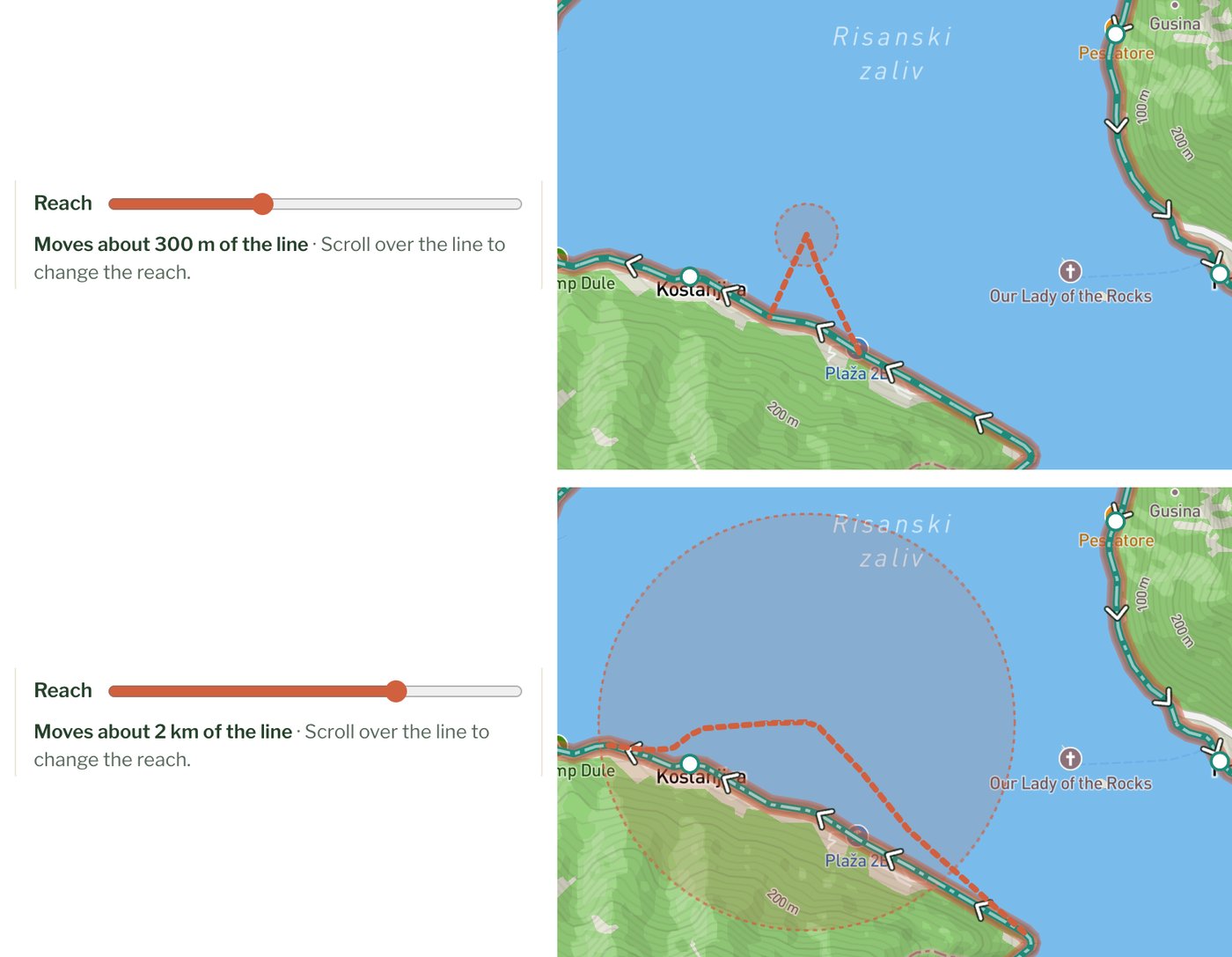
Reach, in the stretch's card, sets how much of the line moves when you drag. While you drag, a shaded circle on the map shows how far the bend reaches. Dots inside it move with you, the ones nearest your pointer the most, and the line outside it stays where it is. Slide Reach to the right for a long, gentle bend, which suits a road drawn a little to one side. Slide it to the left for a short, sharp one. The words under the slider say what a drag will move, for example Moves about 300 m of the line or Moves about 2 km of the line. On a computer you can also scroll over the line to change it. The reach fits what you're working on: it's never more than half the stretch or a quarter of the screen, and it keeps its size on screen when you zoom in or out. The editor remembers your setting.
Just this point
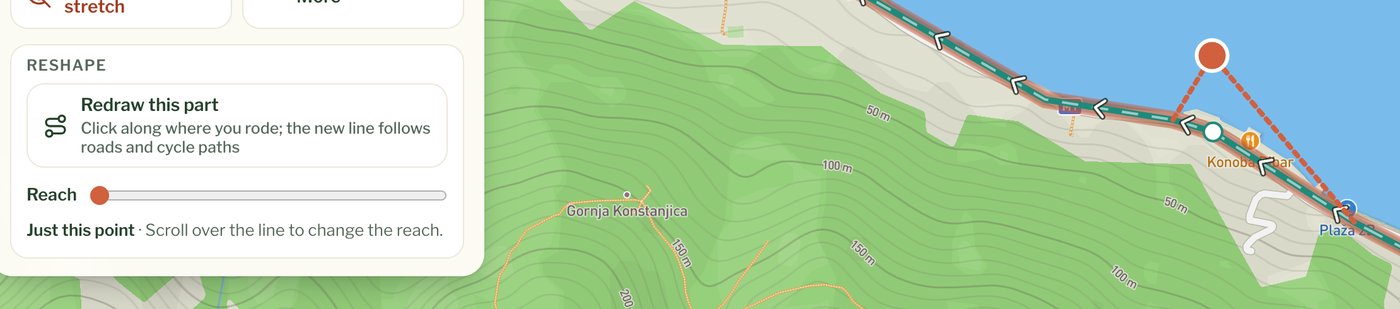
Slide Reach all the way to the left and it says Just this point. Then only the dot you grab moves, and the line either side of it stays as it was. That suits one dot that landed on the wrong side of a river or a road. On a phone you get the same by pressing and holding a dot before you drag it.
One stray dot
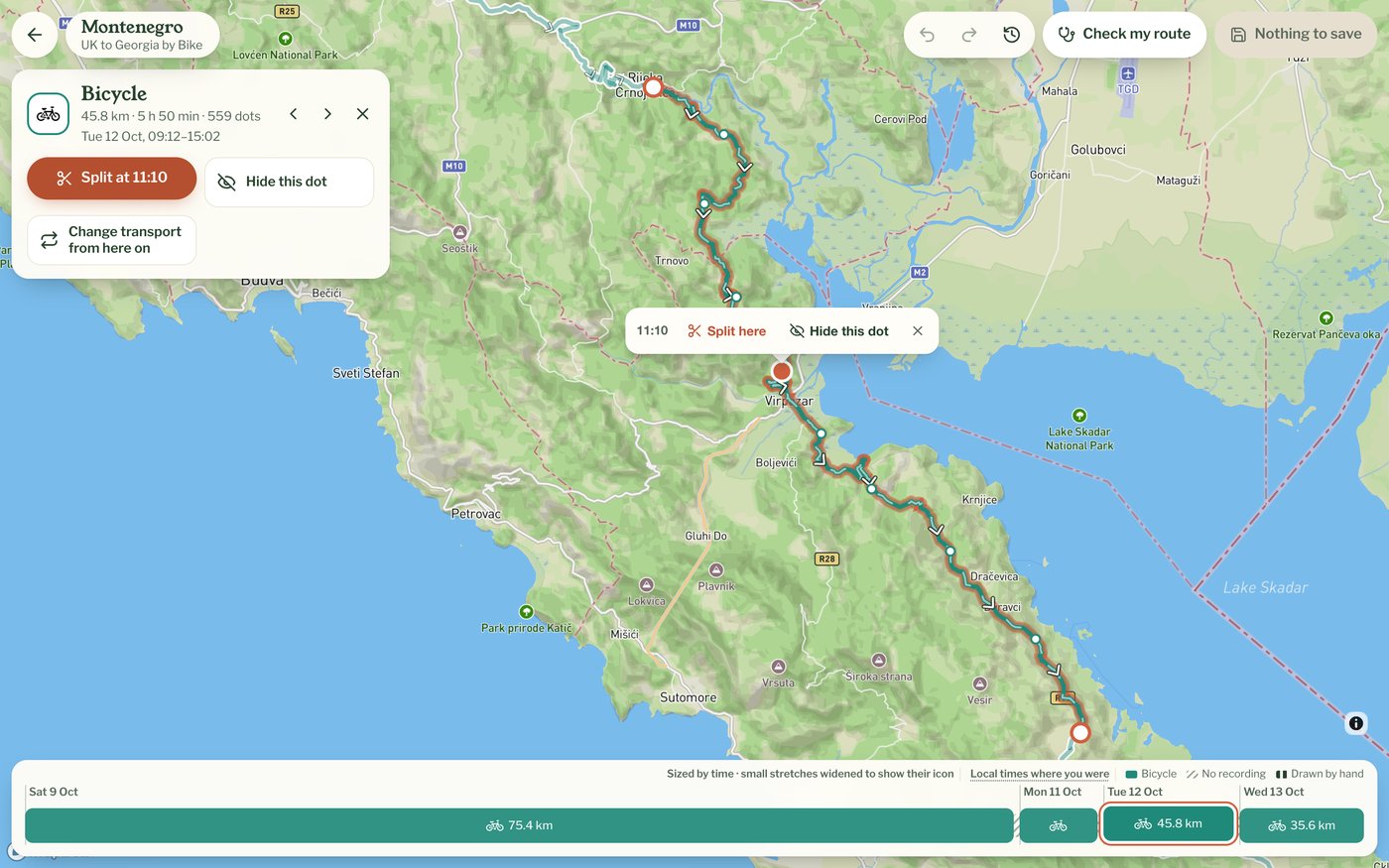
Click a dot and a small box opens beside it with the time it was recorded. Hide this dot takes it out of the route. That's the quickest fix for a single dot that jumped a few hundred metres off. It stays in your recording, so Restore the original route would bring it back.
Splitting a stretch
Splitting is how you work on part of a stretch. Say you walked to the station and the train ride was recorded as part of the walk. Click the dot where you got on the train and choose Split here (on a phone, tap the dot and use Split at in the card, which shows the dot's time). The stretch becomes two, and the second part is picked straight away so you can change its transport. Change transport from here on, in the card, does both in one go.